Most home labs never get built. Not because the gear costs too much, it doesn’t anymore, but because people spend six weekends reading forum threads and zero weekends plugging things in.
You’ve probably got a browser tab open right now comparing mini PCs. Close it. A working home lab setup for network engineers takes two days and somewhere between $0 and $250, and the version that gets built on Saturday beats the perfect one you’re still planning in March.
Here’s what this guide covers: the three build tiers and what each actually costs, which emulator to pick now that EVE-NG’s free tier changed, whether real switches are worth buying in 2026, and three starter topologies with the verification commands to prove they work.
Everything below was checked on 2026-08-10.
One thing first: this guide assumes you have already decided to build a
hands-on networking lab. Still deciding, or want the version mapped to
Security+, AWS, or DevOps too? If Security+ is the goal, our SY0-701 practice questions are a good next stop. Our complete home lab guide by certification track
covers that ground before this one does.
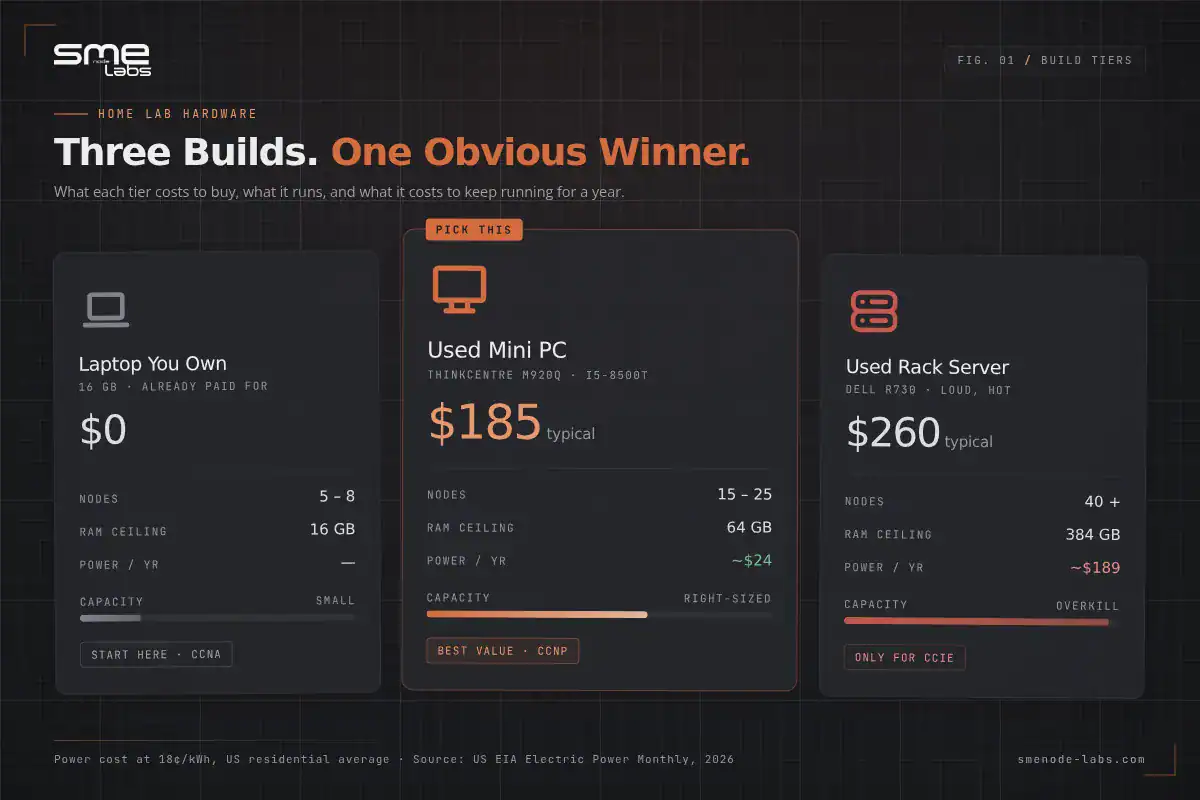
The short answer: three builds, three budgets
| Build | Hardware | Cost | Runs | Good for |
|---|---|---|---|---|
| Laptop only | The machine you already own, 16 GB RAM | $0 | GNS3 or CML Free, 5 to 8 nodes | CCNA, first 3 months |
| Used mini PC | ThinkCentre M920q or OptiPlex Micro, i5-8500T, 32 GB | $170 to $220 | EVE-NG or CML, 15 to 25 nodes | CCNP, multi-vendor, security |
| Used rack server | Dell R730 or HP DL380, 128 GB+ | $200 to $400 | 40+ nodes, full CCIE topologies | CCIE, team labs, you have a basement |
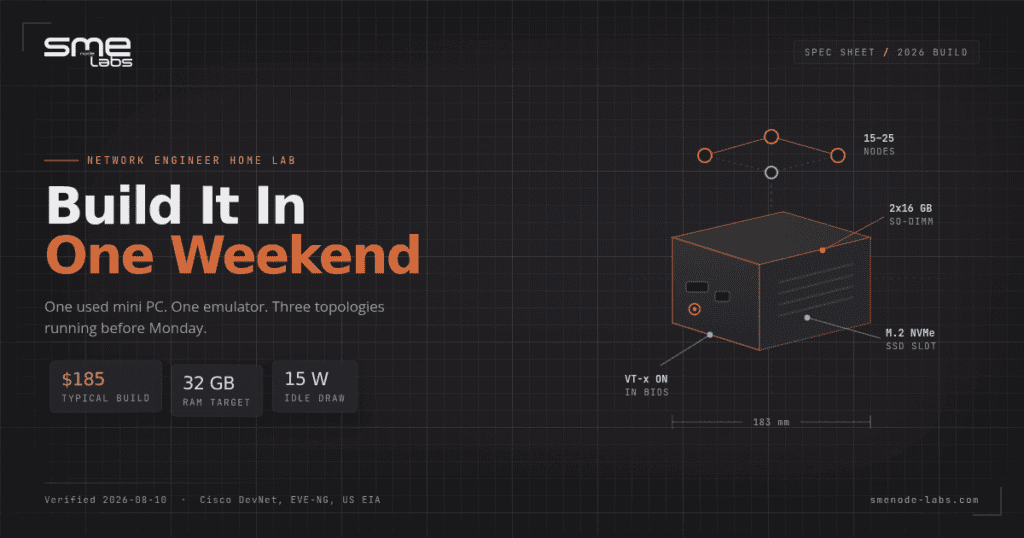
Pick the middle one. A refurbished small form factor desktop with 32 GB of RAM handles almost every certification lab short of a full CCIE topology, idles at about 15 watts, and fits behind a monitor.
The rack server is the trap. More on that in a minute.
What a home lab setup actually needs (only three things)
Strip away the shopping lists and every lab comes down to three parts.
RAM. This is the one that decides everything. Emulated routers and switches each reserve memory whether they’re busy or not. A Cisco IOL node is light, maybe 1 GB. A FortiGate VM or an ASAv wants 2 to 4 GB. Ten nodes at 2 GB each and you’ve eaten 20 GB before the host OS gets a look in.
A CPU with virtualisation support. Intel VT-x or AMD-V, turned on in BIOS. Every emulator needs it. Core count matters less than most people think, since lab nodes spend most of their life idle.
An SSD. Not for speed during labs. For the 90 seconds it takes to boot a topology instead of six minutes. Any NVMe drive from the last five years is fine.
That’s the list. No 10-gig networking, no ECC memory, no GPU. Our breakdown of EVE-NG hardware requirements goes deeper on the RAM maths per node type if you want to size it precisely before buying.
Building a lab but not sure what to build in it? Our CCNA lab workbook ships with 75+ topologies mapped to exam objectives and an EVE-NG ISO with the files pre-loaded, so you’re configuring in ten minutes instead of designing from scratch.
Saturday: buy and build the hardware
Why a used office mini PC wins
Corporate lease returns flood the used market every few years, and 8th-generation Intel small form factor desktops are the sweet spot right now. The Lenovo ThinkCentre M920q Tiny is the one most home labbers land on. Two SO-DIMM slots, takes 64 GB of DDR4, an M.2 slot plus a 2.5-inch bay, and it’s roughly the size of a hardback book.
Refurbished units with an i5-8500T and 32 GB of RAM run about $170 to $220 depending on the seller and the SSD. Dell OptiPlex Micro and HP EliteDesk Mini are the same idea with different badges, and they’re often cheaper because fewer people search for them.
Check three things before you buy:
- RAM is DDR4 SO-DIMM, not soldered. Two slots means you can go to 64 GB later.
- The unit has an M.2 NVMe slot. Some base configs shipped with only a SATA bay.
- VT-x isn’t locked in BIOS. Rare on these, but ex-corporate machines sometimes ship with odd firmware settings.
Here’s the common upgrade path. You start on a work laptop with 16 GB, hit a wall the first time you add a firewall to a routing lab, and go looking for a used mini PC. A refurbished M920q with 32 GB runs under $200 on the secondhand market. Setup time from unboxing to first OSPF adjacency is about four hours, most of it downloading images. That gets you 14-node topologies on a machine that costs less than an exam voucher.
The rack server trap
The other direction is a used enterprise server. A Dell R720 with 128 GB of RAM turns up for around the same money, which looks like four times the lab for barely more cash.
Then it arrived. Two hundred watts at idle, fans that sound like a hair dryer, and a spot in the garage because nobody could sleep near it. He sold it eight months later for $140.
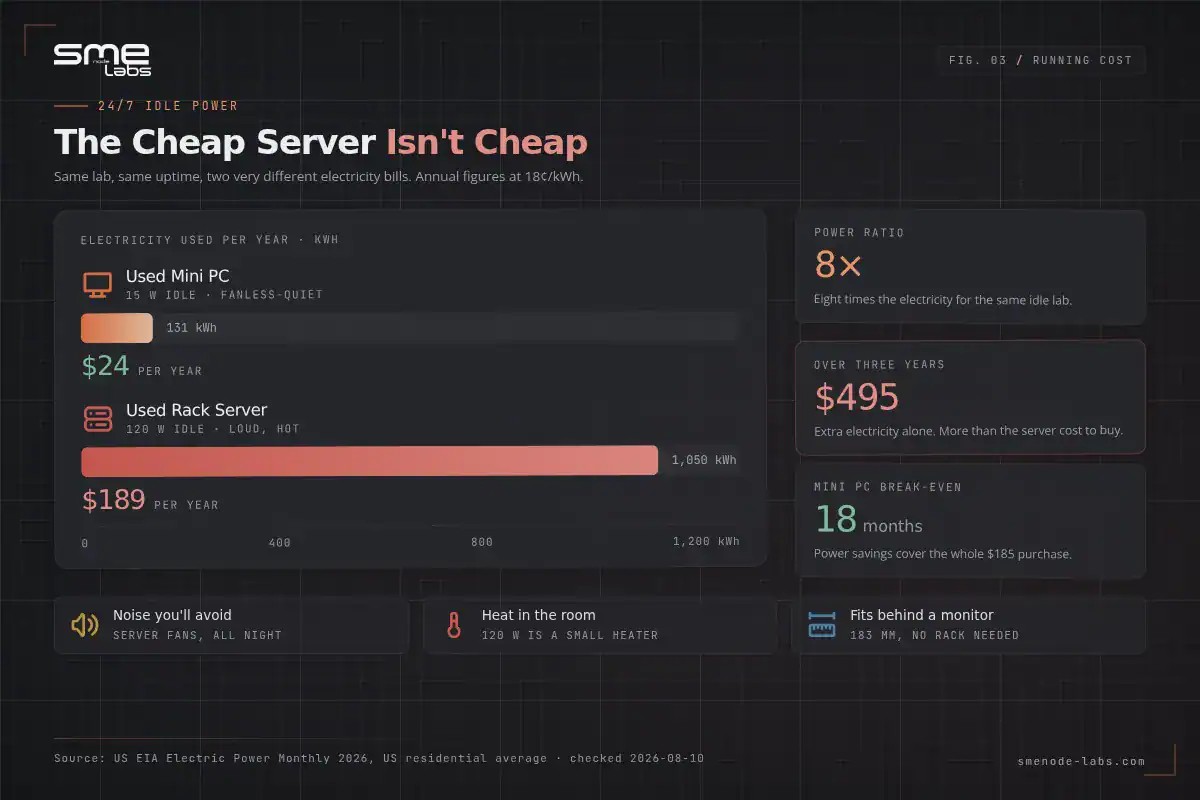
The numbers back him up. A mini PC idling around 15 watts burns about 131 kWh a year. A rack server at 120 watts burns roughly 1,050 kWh. At the US residential average rate published in the EIA Electric Power Monthly, call it 18 cents per kWh, that’s about $24 a year versus $189. Over three years the “cheap” server costs $500 more to run than it cost to buy.
Noise and heat matter more than the spreadsheet suggests. A lab you avoid using because it’s loud is a lab you don’t use.
Buy the rack server when you genuinely need 128 GB or more. Not before.
Do you actually need real switches?
Short answer for most people: no.
Longer answer. Emulated devices handle every protocol on the CCNA and CCNP blueprints. OSPF, EIGRP, BGP, VLANs, trunking, STP, ACLs, NAT, VRFs, all of it behaves the same way in software. Used Cisco 3560-CX compact switches sell around $150 each, and older 2960s go for $40 or so, which sounds cheap until you’ve bought three plus a console cable plus a rack shelf.
Where physical gear earns its keep:
- Power over Ethernet. You can’t emulate PoE budget negotiation.
- Optics and transceivers. SFP compatibility, DOM readings, fibre handling.
- Cabling and console muscle memory. Genuinely useful before a hands-on job interview.
- Field roles. If you’re racking gear at customer sites, hands beat clicks.
If you want one physical box for the tactile part, get a single used 3560-CX. It’s fanless, it does Layer 3, and it draws almost nothing. Skip the stack of 2960s.
Sunday: pick your emulator and load it
This is where 2026 differs from every older guide you’ll find on page one of Google. The free tiers moved.
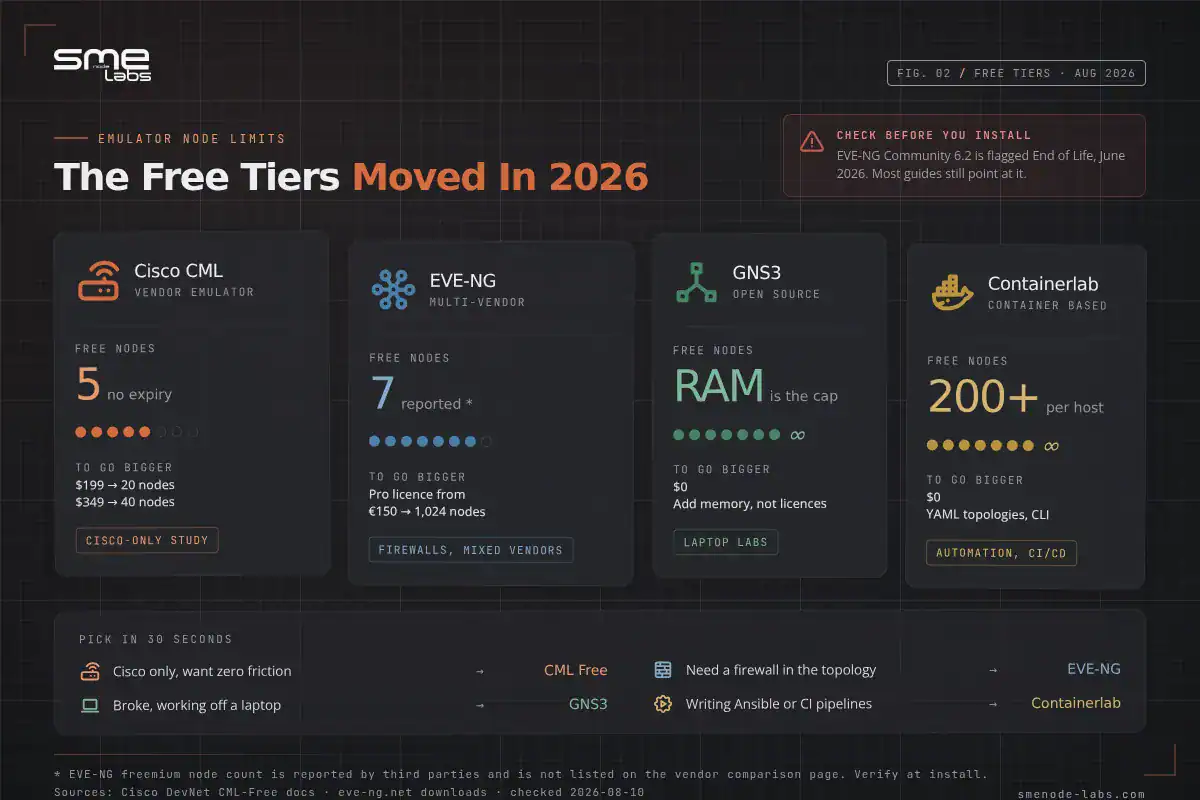
| Platform | Free tier as of August 2026 | Paid | Best for |
|---|---|---|---|
| Cisco CML | CML Free, 5 nodes, no expiry | Personal $199 (20 nodes), Personal Plus $349 (40 nodes) | Cisco-only study, legitimate images, zero download hunting |
| EVE-NG | Community 6.2 is marked End of Support and End of Life as of June 2026. The Pro ISO installs in freemium mode | Pro licence from around 150 EUR | Multi-vendor labs, FortiGate, Palo Alto, Juniper |
| GNS3 | Free and open source, no node cap beyond your RAM | $0 | Laptop labs, tight budgets, huge community |
| Containerlab | Free and open source | $0 | Automation, CI/CD, 100+ node scale |
Sources: Cisco DevNet CML-Free documentation and the EVE-NG download page.
One honest caveat on EVE-NG. The Community ISO is still downloadable and still shows a 63-node ceiling on the vendor’s own comparison table, but it’s flagged end of life. The Pro ISO runs unlicensed in freemium mode, and third-party write-ups put that limit at 7 nodes. EVE-NG’s public comparison page doesn’t list a freemium row, so treat the exact number as unconfirmed until you install it and see for yourself.
How to choose in 30 seconds
Studying Cisco only, want zero friction? CML Free. Five nodes is tighter than it sounds, but the images are Cisco’s own and nothing breaks.
Need a firewall in your topology? EVE-NG. It’s the only one that comfortably runs FortiGate, Palo Alto, and Cisco side by side. Our guide on adding a FortiGate VM to EVE-NG covers the rename step that breaks most first attempts.
Broke and on a laptop? GNS3. Still free, still works.
Writing Ansible playbooks or building CI pipelines? Containerlab. It spins topologies from a YAML file and scales past 100 nodes on hardware that would choke running 15 VMs.
Still torn? We put the three side by side in Cisco Modeling Labs vs EVE-NG vs GNS3, and there’s a narrower head-to-head in GNS3 vs EVE-NG.
Bare metal or hypervisor?
Two ways to install.
Bare metal. EVE-NG or CML goes straight onto the mini PC as the only OS. Simplest, fastest, best performance. Do this if the lab is all the machine does.
On Proxmox. Install Proxmox VE first, then run your emulator as a VM alongside a Linux jump host, a DNS server, whatever else you want. You need nested virtualisation turned on for the emulator VM, which Proxmox VE 9.1 improved with a finer-grained vCPU flag. Slightly more setup, far more flexible.
Beginners: bare metal. You can always rebuild later, and rebuilding is good practice anyway. The EVE-NG install walkthrough takes about 40 minutes end to end.
Three topologies to build first
A lab with nothing running in it is a paperweight. Build these three in order. Each one takes under an hour and each proves something different works.
1. Two routers, one switch, single-area OSPF
Nodes: 3. Fits inside CML Free.
Two routers connected over a /30, both with loopbacks, one switch hanging off R1 with two VLANs. Put both router interfaces and both loopbacks into OSPF area 0.
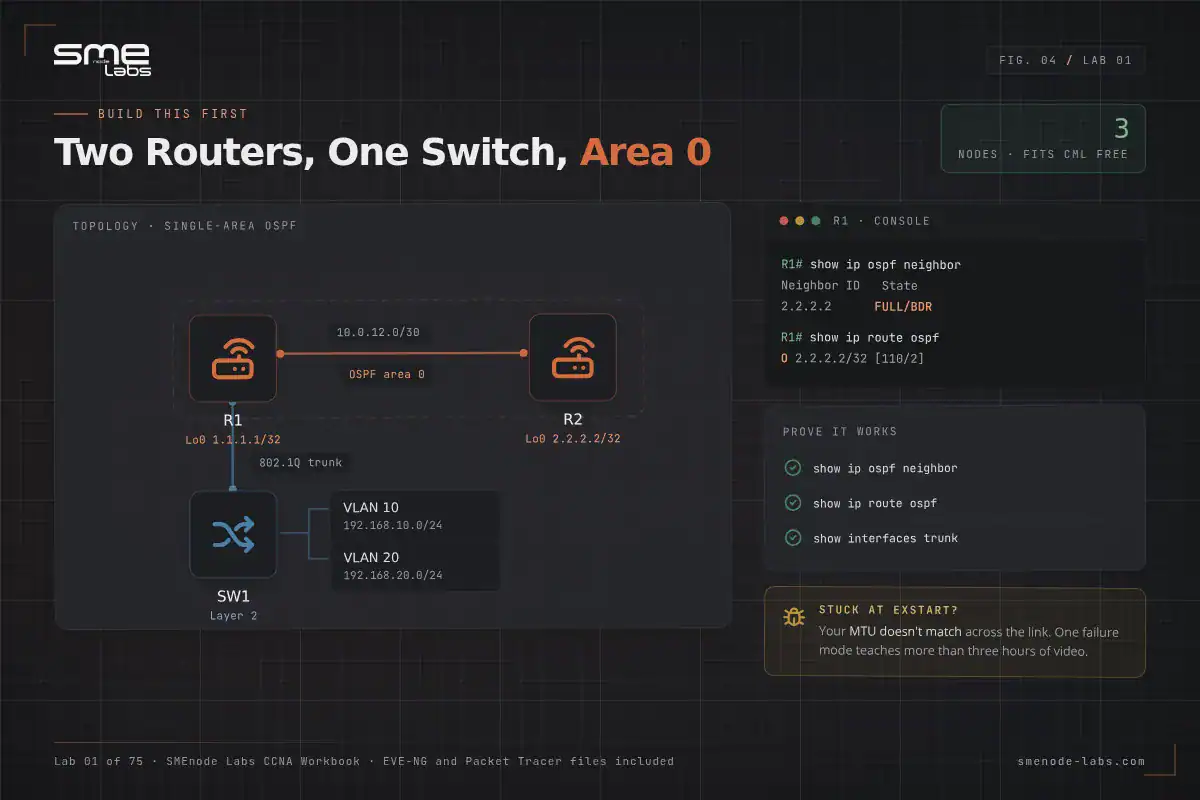
Verify with:
show ip ospf neighbor
show ip route ospf
show ip protocols
You’re looking for FULL state on the neighbour and the remote loopback appearing as an O route. If the adjacency sticks at EXSTART, your MTU doesn’t match. That single failure mode teaches more than three hours of video.
2. Hub and spoke with DHCP and NAT at the edge
Nodes: 4 plus an unmanaged switch.
One edge router doing NAT overload toward a simulated internet, two branch routers behind it, one Linux host pulling an address by DHCP. In CML the Unmanaged Switch and External Connector don’t count against your node limit, so this still fits in the free tier.
Verify with:
show ip nat translations
show ip dhcp binding
show ip route
Then break it deliberately. Remove the ip nat inside statement from one interface and watch exactly which pings stop. Fixing your own sabotage is the fastest troubleshooting drill there is.
3. Multi-vendor edge with a firewall
Nodes: 3 to 4. Needs EVE-NG.
A Cisco router upstream, a FortiGate or ASAv in the middle, a Linux host behind it. Set up a policy that permits HTTP out and blocks everything else, then prove it from the host.
This is the topology that separates people who’ve only used Packet Tracer from people who’ve touched real security gear. If you’re still on Packet Tracer and wondering when to move up, we wrote about exactly when the switch is worth it.
Want the next 70 topologies handed to you? The CCIE Enterprise workbook and the CCNA workbook both ship with ready-to-load EVE-NG files, so your Sunday goes into configuring instead of drawing diagrams.
What’s actually in a home network lab kit
People search for “home network lab kit” expecting a box that arrives with everything. Two different things get sold under that name, so it’s worth separating them. Deciding what to build? What a home lab is, track by track breaks it down by certification.
Physical kits. Bundled used gear, usually two or three routers, a couple of switches, console cables, and sometimes a rack shelf. Prices run from $300 to well over $1,000. The hardware is real, but you’re paying a markup for someone else’s shopping, and you inherit whatever IOS versions they had lying around.
Virtual kits. A workbook plus a pre-built EVE-NG ISO or set of topology files. You supply the mini PC. Everything is loadable in minutes, versions are current, and the labs are sequenced against an exam blueprint instead of assembled from whatever was on the shelf.
For certification study, the virtual kit wins on every measure that matters: cost, currency, noise, and the number of protocols you can practise. Physical kits only make sense if your job involves racking and cabling.
The one genuinely useful physical purchase for most people is a USB-to-serial console cable. About $15. Get one anyway.
Five mistakes that kill home labs
Buying before you know your node count. Work out the biggest topology on your exam blueprint, multiply nodes by their RAM, add 4 GB for the host. That’s your number. Buy for that, not for a hypothetical future.
Starting on a rack server. Covered above. Noise and power bills end more home labs than any technical problem.
Chasing image files instead of labbing. Hours vanish hunting for a specific IOS version. Use what your emulator ships with. The protocols behave the same.
No shutdown routine. Leaving 12 nodes running overnight for weeks is how a $24 power bill becomes a $200 one. Snapshot, stop the lab, walk away.
Building topologies with no goal. A pretty 20-node diagram teaches nothing if you never configure it. One protocol per session, verified, then broken on purpose.
Look, the pattern behind all five is the same. People optimise the lab instead of using it.
Frequently asked questions
How much RAM do I need for a network engineering home lab?
For CCNA-level work, 16 GB is enough. For CCNP and multi-vendor labs with firewalls, 32 GB is the practical floor. CCIE topologies and data centre work want 64 GB or more. Count your nodes, multiply by 1 to 4 GB depending on node type, then add 4 GB for the host operating system.
Can I build a home lab on a laptop?
Yes, if it has 16 GB of RAM and virtualisation enabled in BIOS. GNS3 and CML Free both run locally and handle small topologies fine. You’ll hit the ceiling once you add firewalls or go past about eight nodes, which is usually when people move to a dedicated mini PC.
Is a home lab still worth it if I can use cloud labs?
For most self-study, yes. Cloud lab subscriptions charge by the hour or month, and study stretches over many months. A $185 mini PC pays for itself quickly, runs offline, and lets you leave a broken topology sitting there overnight while you think about it. Cloud makes more sense for short, intense bursts before an exam date.
Do I need real Cisco equipment to pass the CCNA?
No. Every protocol on the CCNA 200-301 blueprint runs in an emulator, and the exam is not a hands-on lab. Physical gear helps with console cabling and PoE, neither of which appears on the written exam. Save the money for a second monitor.
What’s the cheapest home lab setup that still works?
Free, if you already own a laptop with 16 GB of RAM. Install GNS3 or CML Free, download the included images, and build. The first genuine spend is a used mini PC around $170 to $220 once node limits start getting in the way.
How long does it take to set up a home lab?
A weekend. Roughly four hours on hardware, including shipping delays and BIOS fiddling, then three to four hours on Sunday to install the emulator, load images, and get a first topology running. Most of that time is downloads.
Bottom line
Three takeaways worth keeping:
- A used mini PC with 32 GB of RAM is the best value in home labbing right now. Around $185, roughly $24 a year to run, handles almost everything short of CCIE.
- The free tiers changed in 2026. CML Free gives you 5 nodes with no expiry. EVE-NG Community is end of life as of June 2026, so check what you’re installing before you commit a weekend to it.
- Skip the physical gear unless your job needs it. One console cable, maybe one compact switch. That’s it.
The lab isn’t the achievement. What you build inside it is. Pick your hardware today, get an emulator running by Sunday night, and have OSPF adjacencies up before Monday.
Ready to fill that lab with labs? The CCNA workbook gives you 75+ topologies with verified configurations and an EVE-NG ISO that loads in minutes.