To install EVE-NG in 2026, download the free EVE-NG Pro ISO (version 7.2.0-18 as of 2026-10-07), create a VM with Intel VT-x/EPT or AMD-V passed through, boot the ISO, finish the first-boot wizard, then log in at https://<your-eve-ip> as admin/eve. That’s the whole job. Five steps.
Two things changed this year, and most install guides still haven’t caught up. There’s no OVA anymore, so you build the VM yourself from the ISO. And the free Community Edition reached end of life in June 2026. Its replacement, Freemium, is the same Pro ISO running without a licence key, capped at 7 nodes.
This guide covers the v7 install on VMware Workstation Pro, ESXi, Proxmox and bare metal, plus the settings that stop most installs before the login screen.
What is EVE-NG?
EVE-NG (Emulated Virtual Environment, Next Generation) is a network emulator you manage from a web browser. It boots real vendor firmware from Cisco, Juniper, Arista, Palo Alto Networks, Fortinet and others, as long as you supply your own licensed images. It runs QEMU, Dynamips, IOL (IOS on Linux) and Docker nodes.
The key word is emulator. A simulator like Cisco Packet Tracer models how a device should behave. Someone wrote code that approximates the output of show ip route. EVE-NG boots the vendor’s actual operating system, so when you type show ip route, real IOS answers. Every command works. Every bug is there too.
The vendor calls it “clientless” because the management interface is a web page. Your labs live on the EVE-NG server, not your laptop, so you can leave a topology running and reconnect from another machine.
People use it for three things: certification practice, testing a design before it touches production, and reproducing a fault somewhere safe.
Is EVE-NG free? What changed in v7
Yes, there’s still a free tier. It’s much smaller than it was.
EVE-NG shipped its version 7 line at the end of June 2026 and retired Community Edition (the last release, 6.2.0-4, is marked “End of Support & End of Life June, 2026”). In its place is Freemium: the Pro ISO without a licence key. Here’s what the vendor lists on its features comparison page:
| Freemium | EVE-NG Base | EVE-NG RBL | |
|---|---|---|---|
| Price | Free | 150 EUR | 150 EUR + added roles |
| Node limit | 7 nodes per EVE instance | 1024 per lab | 1024 per lab |
| Concurrent users | 2 admins only | 2 admins only | Licence-role based |
| User roles | Admin only | Admin only | Admins, editors, users |
So the free self-hosted path went from 63 usable nodes down to 7. Anything bigger needs a paid licence.
Seven nodes is tighter than it sounds, but it isn’t useless. A CCNA topology with two routers, two switches and a couple of hosts fits. A CCNP redistribution lab with six routers fits. A full CCIE Enterprise topology doesn’t, and neither does a firewall pair in front of a routed core.
One caveat nobody else seems to mention. The comparison page contradicts itself. One row says “7 nodes per EVE instance”. A row further down says “Node limit per lab: 63” for Freemium. The vendor’s own Professional Cookbook v7.8 (September 2026) settles it: “Freemium license allows to run up to 7 nodes per EVE instance.” Plan around 7.
For the full edition breakdown and checksums, see our EVE-NG download guide.
What do you need before you install EVE-NG?
One setting stops more installs than everything else combined.
Hardware virtualization has to be on. Reboot, open BIOS/UEFI (usually F2, F10 or Delete) and enable Intel VT-x or AMD-V. Some boards call it “Virtualization Technology” or “SVM Mode”. If EVE-NG runs as a VM, you also tick “Virtualize Intel VT-x/EPT or AMD-V/RVI” in the VM’s processor settings. Without it, EVE-NG may install fine and then refuse to start a single QEMU node.

Intel VT-x or AMD-V has to be on in BIOS, then ticked again in the VM’s processor settings.
Here’s what the vendor’s cookbook gives as the minimum for a laptop or desktop running EVE-NG as a VM:
| Host PC | EVE-NG VM | |
|---|---|---|
| CPU | Intel i7, 8 logical processors, VT-x on | 8 vCPU, VT-x/EPT and IOMMU passed through |
| RAM | 16 GB | 16 GB or more |
| Disk | 500 GB or more | 120 GB or more (200 GB recommended in the install steps) |
| Hypervisor | VMware Workstation Pro 16.0 or later |
That’s more than older guides quoted, and it’s the vendor’s own number. The cookbook also ranks what matters: CPU cores first, a fast SSD second, RAM third. Planning a bigger build? Read EVE-NG hardware requirements: CPU, RAM, storage before you buy anything.
What isn’t supported, per the cookbook: VirtualBox, Microsoft Hyper-V, Citrix XenServer, Apple silicon (M-series) Macs, AWS, and external or network drives. You’ll find videos of people running EVE-NG on Hyper-V. It’s not a supported path, so don’t build your study plan on it.
On Windows 11, Hyper-V and related features (Virtual Machine Platform, Windows Hypervisor Platform, Memory Integrity) can grab the virtualization layer before VMware gets it. That’s the most common reason the “Virtualize Intel VT-x/EPT” box throws an error. Our EVE-NG install errors guide walks through switching them off.
Step 1: Download the EVE-NG ISO
Go to the EVE-NG download page and grab the EVE-NG Professional Full ISO. As of 2026-10-07 it’s version 7.2.0-18 and about 10 GB, because it bundles the Docker packages. The same file is the Freemium edition. You don’t need a key to install it.
Looking for the EVE-NG OVA? There isn’t one for v7. The download page offers the Full ISO and an upgrade package, nothing else. Any OVA you find is either the retired Community Edition or a third-party build, and you shouldn’t trust a third-party build with root access to your lab.
What about the client pack? The Windows, macOS and Linux client packs on the download page say “Compatible with EVE-NG versions up to 6.x”. From 7.0.1-1 onward, you download the client from your own EVE-NG server after install (Step 4). Grab the old pack for a v7 server and consoles won’t launch properly.
Step 2: Create the VM or prepare the server
EVE-NG v7 installs the same way everywhere: boot the ISO, let it run. What changes is where it boots.
Method A: VMware Workstation Pro (easiest)
Best for a single learner on a Windows or Linux PC. VMware Workstation Player was discontinued in 2024, but Workstation Pro is now free from version 17.5.2 onward. You download it from the Broadcom support portal after registering.
The vendor’s VM settings, in the order Workstation asks for them:
- File > New Virtual Machine > Custom, then pick the hardware compatibility (17.5 in the cookbook example).
- Choose “I will install the operating system later”.
- Guest OS: Linux, version Ubuntu 64-bit.
- Processors: as many as your PC allows, with cores per processor set to 1.
- Memory: 16 GB or more.
- Network: NAT on a laptop (so the EVE IP doesn’t change every time you switch Wi-Fi), NAT or Bridged on a desktop. EVE-NG needs internet and DNS either way.
- Keep the LSI Logic controller and SCSI disk. Create a new disk of at least 200 GB and store it as a single file.
- Click Customize Hardware. Under Processors, tick Virtualize Intel VT-x/EPT or AMD-V/RVI and Virtualize IOMMU.
- Point the CD/DVD drive at the EVE-NG ISO.
- If you set the firmware to UEFI, disable secure boot.
Want screenshots of every dialog? Our EVE-NG on VMware Workstation walkthrough has them.
Method B: ESXi or Proxmox VE (dedicated lab server)
Better when you’ve got a spare server and want EVE-NG running all the time. The cookbook supports VMware ESXi 6.7 or later and Proxmox VE 8.x or later. ESXi’s free edition is back, too: Broadcom reinstated it with 8.0 Update 3e in April 2025. It caps each VM at 8 vCPUs, which is exactly the vendor’s minimum for EVE-NG.
The settings mirror Method A. Upload the ISO to a datastore, create a VM with Ubuntu 64-bit as the guest, and turn on “Expose hardware assisted virtualization to the guest OS” and “Expose IOMMU to the guest OS”. On ESXi, disable secure boot for the VM. Then boot the ISO.
Method C: Bare metal (maximum performance)
Best for big topologies and paid licences, since there’s no nested virtualization tax. Write the ISO to a USB stick (Rufus on Windows, dd on Linux), enable virtualization in BIOS, disable secure boot, and boot from USB. The cookbook also has a second route: install Ubuntu Server 24.04 LTS first, then add EVE-NG on top.
One gotcha the cookbook calls out: a wireless NIC isn’t supported for a bare-metal install. Use wired Ethernet.
Which method should you pick?
| VMware Workstation Pro | ESXi / Proxmox | Bare metal | |
|---|---|---|---|
| Difficulty | Beginner | Intermediate | Advanced |
| Hardware | Your desktop or laptop | Spare server | Dedicated server |
| Performance | Good (nested virtualization) | Better | Best |
| Runs other things too | Yes, it’s your PC | Yes, other VMs | No |
| Best for | Freemium, CCNA and CCNP study | Always-on home lab | Large paid-licence labs |
If you’re on Freemium, pick Method A. With a 7-node cap, you won’t feel the performance gap.
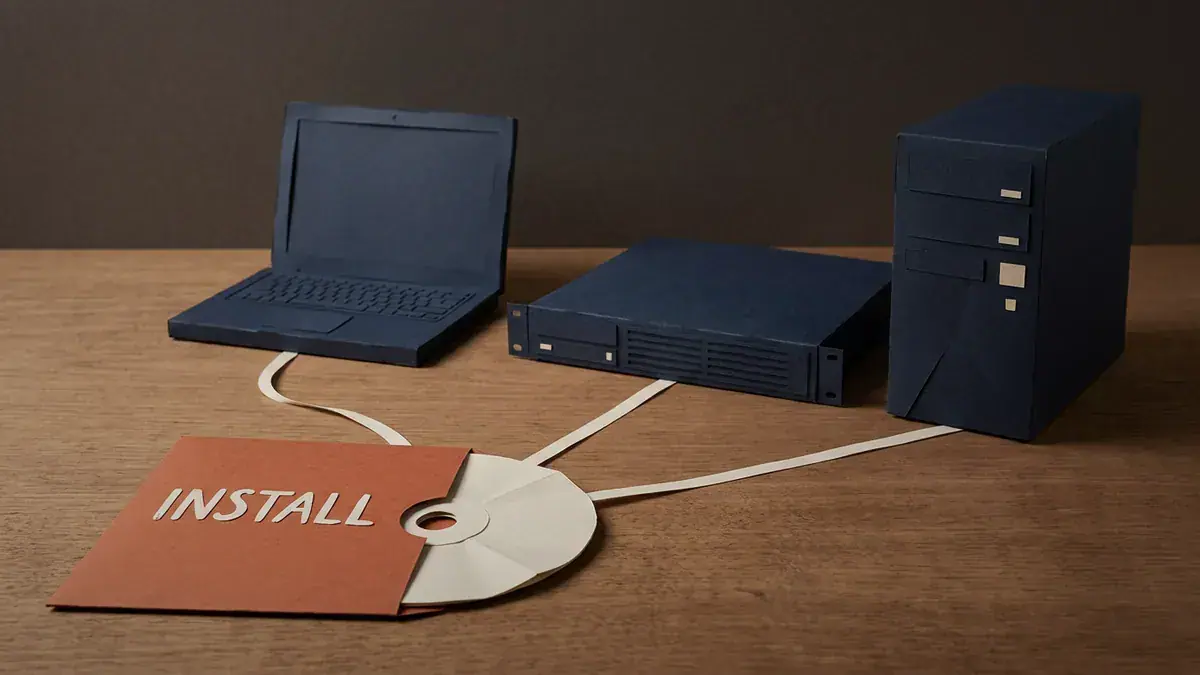
One ISO, three hosts: VMware Workstation Pro, ESXi or Proxmox VE, or bare metal.
Step 3: Run the install and the first-boot wizard
Power on the VM (or server). The v7 installer runs in three phases.
Phase 1, Ubuntu. Choose “Install EVE NG Pro Server”, confirm English and the US keyboard, and select Continue. It reboots on its own.
Phase 2, EVE-NG. The EVE-NG packages install automatically. Don’t log in during this phase. Wait for the second reboot and the login prompt.
Phase 3, management IP. Log in at the console:
- Username: root
- Password: eve
The setup wizard starts straight away. Use Tab to move between fields and the space bar to toggle options:
- Hostname: default is
eve-ng - Domain: default is
example.com - Use DHCP: on by default. Deselect it for a static IP, which the vendor prefers, then fill in IP address, netmask, gateway, DNS1 and DNS2.
- NTP: optional
- Root password: set a new one and confirm it
Select Apply and it reboots. Then log back in and update:
apt update
apt upgrade
To check the install, run dpkg -l eve-ng-pro. It should show the version you installed.
Avoid these subnets on your home network or EVE-NG will fight them: 172.29.129.0/24 (the NAT interface), 172.29.130.0/24 (the cluster VPN) and 172.17.0.0/16 (Docker consoles).

Three phases: Ubuntu, EVE-NG, then the management IP wizard. Don’t log in until phase 2 has rebooted.
Step 4: Log in to the web interface
Open Chrome, Firefox or Edge on a machine that can reach the EVE-NG IP and go to:
https://<your-eve-ip>
Say your IP is 192.168.1.100. You’d open https://192.168.1.100. v7 serves the GUI over HTTPS, so expect a certificate warning on first visit.
- Username: admin
- Password: eve
Change it on first login. Then grab the console client:
- Go to Main > Information > Client Downloads. Your OS is detected for you.
- Download the recommended pack and run it as administrator (Windows), or install the DMG (macOS) or the Linux package.
- Open any node’s console from the web UI to test it.
The client pack wires telnet, VNC and Wireshark capture into your browser. Prefer to stay in the browser? The HTML5 console works without it.
Step 5: Upload images and build your first lab
EVE-NG is the platform. You still have to bring the operating systems.
Where to get images legally
Network images are copyrighted software, and EVE-NG doesn’t ship any. Legitimate sources include Cisco Modeling Labs (its reference platform images), vendor trial and evaluation downloads, and images covered by your employer’s or school’s licensing. Don’t download images from file-sharing sites. Apart from the licence problem, you’ve no idea what’s been added to them.
Uploading images
The vendor recommends WinSCP on Windows or FileZilla on macOS and Linux, connecting over SSH (port 22) as root. Each image type has its own folder:
- IOL (IOS on Linux):
/opt/unetlab/addons/iol/bin/ - Dynamips:
/opt/unetlab/addons/dynamips - QEMU:
/opt/unetlab/addons/qemu
QEMU folder names are strict. They must start with the prefix from the vendor’s naming table, like vios- for Cisco vIOS, and the disk inside has to be named the way the table says, usually virtioa.qcow2 or hda.qcow2. Get it wrong and the image just won’t appear in the node list, with no error. Our guide on how to add router and switch images has the naming table.
After uploading, fix the file permissions:
/opt/unetlab/wrappers/unl_wrapper -a fixpermissionsYour first topology
- Click Add new lab and name it.
- Right-click the canvas (or use Add an Object) > Node.
- Pick an image and set RAM, CPU and interface count.
- Repeat for the other devices. Remember Freemium’s 7-node cap.
- Hover a node, drag the connector to another node, and pick the interfaces.
- Right-click each node > Start.
- Click a node to open its console and start configuring.
That’s it. You’ve installed EVE-NG and built a working lab.

Six nodes, 2 routers, 2 switches and 2 hosts, fit under the Freemium 7-node cap with one to spare.
How do you connect EVE-NG labs to the internet?
Add a network object and set its type to NAT. Nodes connected to it get an address by DHCP and reach the internet through EVE-NG, using 172.29.129.254 as their gateway. This only works if the EVE-NG server itself has internet access.

A NAT network gives nodes a DHCP address and routes them out through 172.29.129.254.
Need nodes on your real LAN instead? Use the Cloud0 network. It’s bridged to EVE-NG’s management interface, so nodes get addresses on the same subnet as the server.
Troubleshooting common EVE-NG install problems
The VM won’t power on, or VMware says nested virtualization isn’t supported. Check BIOS for VT-x or AMD-V first. On Windows 11, turn off Hyper-V, Virtual Machine Platform, Windows Hypervisor Platform and Memory Integrity, then reboot. Full fix: EVE-NG install errors.
EVE-NG installs but QEMU nodes won’t start. “Virtualize Intel VT-x/EPT or AMD-V/RVI” isn’t ticked in the VM’s processor settings. Shut the VM down, tick it, and power on again.
You can’t reach the web interface. Confirm the IP with ip a at the console. Check you’re using https://, not http://. On a laptop with a bridged adapter, the IP may have changed when you switched networks. NAT avoids that.
Consoles don’t open from the browser. You’re probably using the old 6.x client pack. Download the client from your server under Main > Information > Client Downloads.
An uploaded image doesn’t appear in the node list. The folder name doesn’t match the naming table, or the disk file has the wrong name. Fix it, then run the fixpermissions command again.
Nodes stop starting after the 7th one. That’s the Freemium cap, not a fault. Shut down a node you don’t need, or move to a Base licence.
What to build after you install EVE-NG
You’ve got a working emulator. Now you need something to build in it.
That’s where most people stall. EVE-NG gives you a blank canvas and no idea what to put on it, and watching a video then staring at an empty topology teaches you very little. Building a specific lab, breaking it on purpose and fixing it is what makes it stick.
Start free. CCNA labs you can build free in EVE-NG walks through topologies that fit inside the 7-node cap.
Want a structured path? SMEnode Labs workbooks are built for this exact environment:
- CCNA Lab Workbook for the fundamentals, with an EVE-NG ISO and topologies sized for a laptop.
- CCIE Enterprise Infrastructure Workbook for expert-level topologies, once you’ve got the hardware and a paid licence to run them.
Every lab ships with the topology file, the task list and the breakages built in, so you’re troubleshooting, not copying configs. Prefer an instructor? SMEnode Academy’s CCNA course is live and instructor-led.
Still choosing a platform? Read GNS3 vs EVE-NG first.
Frequently asked questions
Is EVE-NG free?
Yes. Freemium is free and runs up to 7 nodes per EVE instance with 2 admin users. It’s the full Pro ISO without a licence key. EVE-NG Base costs 150 EUR and raises the limit to 1024 nodes per lab. The old Community Edition reached end of life in June 2026.
Is there an EVE-NG OVA file for VMware?
Not for v7. The official download page only offers the Full ISO and an upgrade package. You create the VM yourself in VMware Workstation Pro (Linux, Ubuntu 64-bit) and boot the ISO.
How do I install EVE-NG on Windows 11?
Install VMware Workstation Pro, which is free, then build a VM from the EVE-NG ISO. First, turn off Hyper-V, Virtual Machine Platform, Windows Hypervisor Platform and Memory Integrity, or VMware can’t pass virtualization through to EVE-NG.
What are the system requirements for EVE-NG?
The vendor’s minimum for a PC or laptop is an Intel i7 with 8 logical processors, 16 GB RAM and VMware Workstation Pro 16 or later. Give the EVE-NG VM 8 vCPU, 16 GB RAM and at least 120 GB of disk, with VT-x/EPT enabled. CPU cores matter more than RAM.
What are the default EVE-NG usernames and passwords?
Console (CLI): root / eve. Web interface: admin / eve. Change both on first login. The wizard asks for a new root password during setup.
Can I run EVE-NG on a Mac?
Not on Apple silicon. The vendor lists M-series Macs as unsupported, because EVE-NG needs an x86 CPU with Intel VT-x or AMD-V. On an Apple silicon Mac, run EVE-NG on a separate PC or server and use the browser to manage it.
Can I run EVE-NG in the cloud?
Yes, on Google Cloud, which the vendor supports with nested virtualization. The cookbook also has an Azure chapter. AWS is on the unsupported list.
Can EVE-NG run on VirtualBox or Hyper-V?
Neither is officially supported. Use VMware Workstation Pro, ESXi, Proxmox VE or bare metal.
Sources
| Claim | Source | Date checked |
|---|---|---|
| Freemium free, 7 nodes per instance, 2 admins; Base 150 EUR, 1024 nodes per lab; conflicting “63” row | eve-ng.net Features Compare | 2026-10-07 |
| PRO 7.2.0-18 current, Full ISO ~10 GB, no OVA; CE 6.2.0-4 EOL June 2026; client packs cover up to 6.x, 7.0.1-1+ downloads client from server | eve-ng.net Download | 2026-10-07 |
| Hardware minimums, supported and unsupported platforms, VMware VM settings, 3-phase install, wizard fields, default logins, reserved subnets, image folders, NAT cloud gateway, Freemium 7-node limit | EVE-NG Professional Cookbook v7.8, September 2026 | 2026-10-07 |
| fixpermissions command after image upload | eve-ng.net: Cisco vIOS how-to | 2026-10-07 |
| Workstation Pro free from 17.5.2 | Broadcom KB 368667 | 2026-10-07 |
| Free ESXi returned with 8.0U3e, 8 vCPU per VM limit | Broadcom KB 399823 | 2026-10-07 |