Quick answer: To add images to EVE-NG, upload your .qcow2 or .image file to the right subfolder under /opt/unetlab/addons/qemu/, name the folder with the correct prefix, then run the fix_permissions command. Miss any of those three steps and the device won’t appear in your node picker. The CCNA Lab Workbook ships the EVE-NG ISO plus graded lab scenarios, so you practise on a topology that’s already built.
That’s the short version.
The longer story is that EVE-NG won’t tell you what went wrong. You upload a Cisco image, open the web interface, go to add a node, and nothing shows up. You SSH in, check the folder. File is there. You hit F5. Still nothing. Turns out the folder was named iosv-15.9 instead of vios-15.9. One character swap. Most people spend 30 to 45 minutes on this before they find it. We wrote the build out properly: a weekend home lab build with three budgets.
Once you know the naming convention, it clicks fast. This guide covers all three image types EVE-NG supports, where to get Cisco and vendor images legally, the QEMU folder naming table, the upload process via SCP and WinSCP, and the fix_permissions command you must run after every upload.
If you haven’t set up EVE-NG yet, start with our EVE-NG VMware Workstation installation guide first, then come back here.
EVE-NG Image Types: QEMU, Dynamips, and IOL
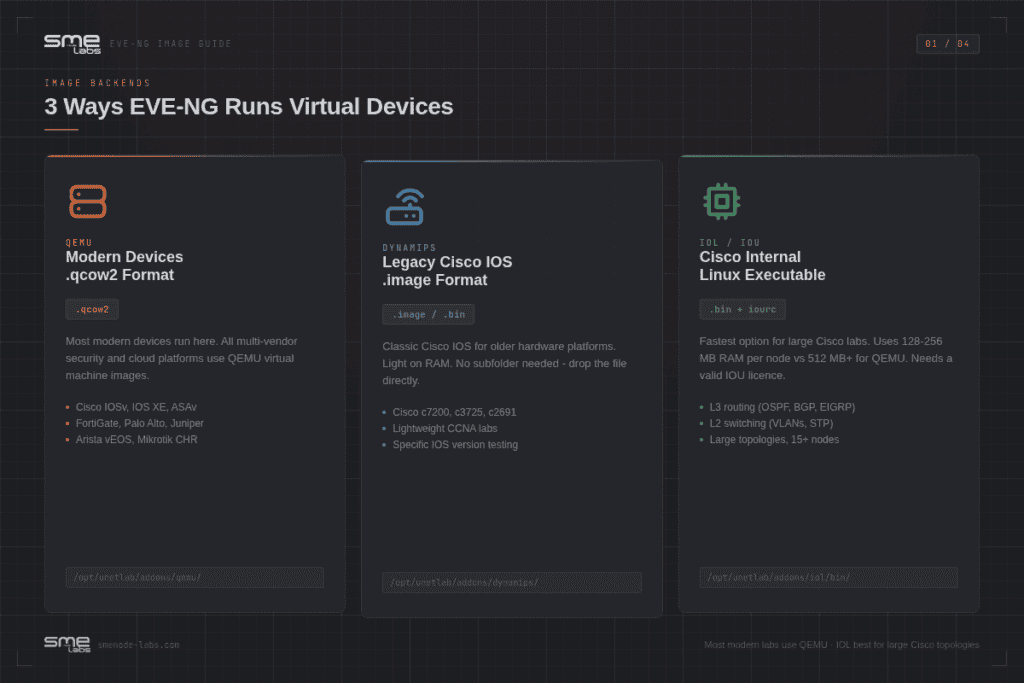
EVE-NG runs devices using three different emulation backends. Which one you use depends on the device.
QEMU is the main one. Most modern devices, including Cisco’s IOSv, IOS XE, IOS XR, ASAv, NX-OS, and all multi-vendor platforms (Palo Alto, Juniper, FortiGate, Arista), run as QEMU virtual machines with .qcow2 disk images. This is what the rest of this article focuses on.
Dynamips handles legacy Cisco IOS. Classic router images like c7200, c3725, and c2691 run as .image or .bin files stored in /opt/unetlab/addons/dynamips/. No subfolder needed. If you’re studying older CCNA topics or want lightweight labs that don’t need much RAM, Dynamips images work fine.
IOU/IOL is Cisco’s internal Linux-based router and switch software. These are .bin executables that run natively on the EVE-NG host. IOL is fast and very light on memory, which makes it popular for large CCNA topologies. The catch? You need a valid IOU license. That license is bound to the hostname of your EVE-NG server. If you rename the host later, the license breaks and your IOL devices die within seconds of starting.
So which should you use?
For CCNA and CCNP routing and switching practice, IOL is the best choice if you can get a license. For security labs with ASAv, FortiGate, or Palo Alto, you need QEMU. For running a specific older IOS version quickly, Dynamips works.
Where to Get EVE-NG Images Legally
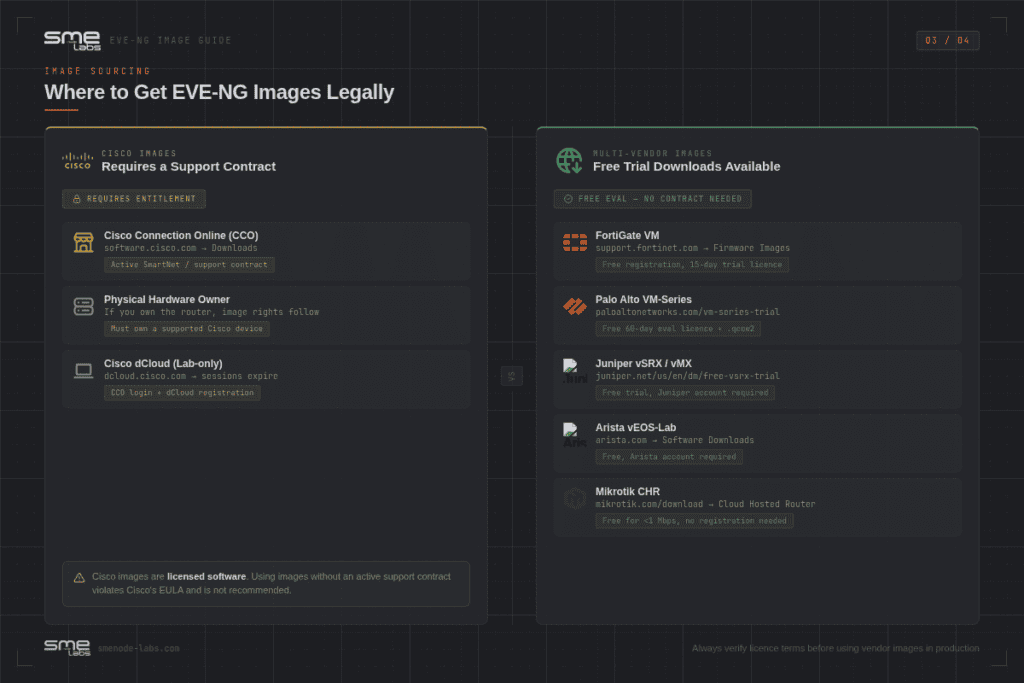
This is the part people avoid talking about. Let’s be straight.
Cisco IOS images are copyrighted software. You’re supposed to have an active support contract to download them from Cisco’s software download portal. Most home lab users don’t have that.
Here’s what’s actually available legally:
Cisco DevNet Sandbox gives you free access to hosted labs running real Cisco devices. It’s not a download source, but it lets you practice Cisco configurations without owning any images locally.
Your own hardware is the cleanest path. If you own a physical Cisco router or switch with a valid license, you’re entitled to IOS software updates for that specific platform. Downloading the IOS for your own device and running it in EVE-NG for testing is generally considered acceptable, though Cisco’s EULA is worth reading yourself.
Multi-vendor trial images are much easier to get legitimately:
- FortiGate VM is available from the Fortinet support portal with a free registered account. You get a 14-day evaluation licence, and the image runs fine in EVE-NG.
- Palo Alto VM-Series has a free evaluation download from Palo Alto Networks with a registered account.
- Juniper vSRX is available through Juniper’s free trial programme.
- Arista vEOS is downloadable from Arista’s software portal with a free account.
- Mikrotik CHR (Cloud Hosted Router) is a free download from mikrotik.com and runs under a trial licence in EVE-NG.
One thing worth being clear about: extracting images from the Cisco CML refplat ISO and using them in EVE-NG breaks Cisco’s CML EULA. The licence for CML images explicitly prohibits use outside the CML platform. It’s a common workaround people mention online, but it’s not allowed.
For Cisco images, the practical path for home lab use is a used Cisco ASA or router from eBay for $30 to $80, a legitimate firmware download for that device, and running it in your lab.
The QEMU Naming Convention: How EVE-NG Finds Your Imagesg
This is the part that trips people up most.
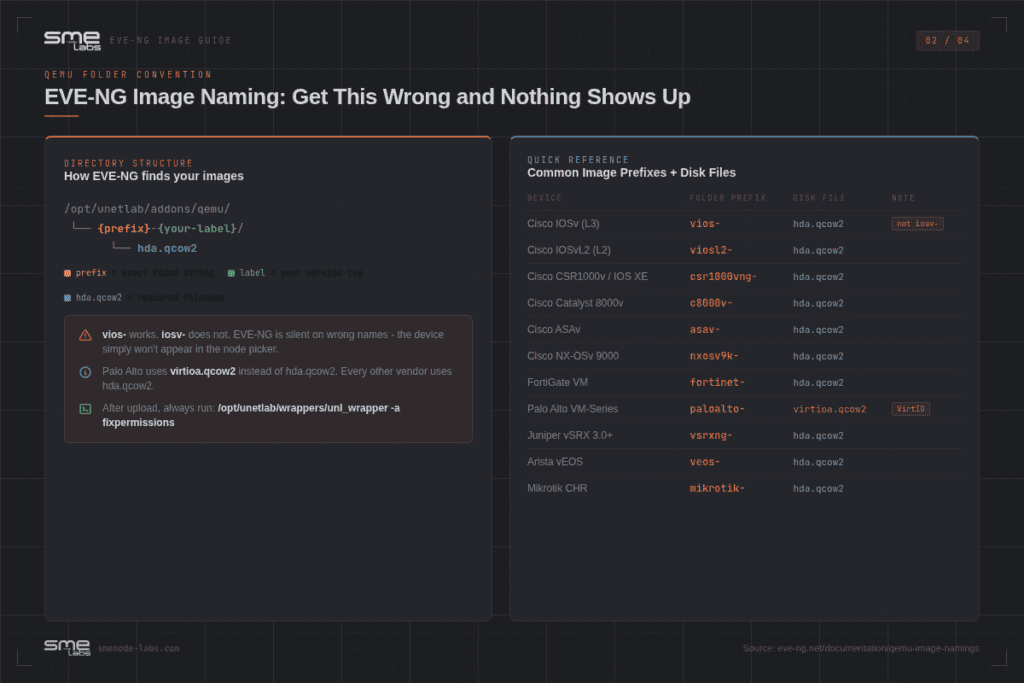
EVE-NG reads image folders from /opt/unetlab/addons/qemu/. Each device image lives in its own subfolder. The folder name tells EVE-NG which device template to use, and the prefix before the hyphen must match exactly what EVE-NG expects.
The format is: {prefix}-{your-label}/hda.qcow2
The prefix is not something you choose. It’s a fixed string from EVE-NG’s template list. Get it wrong and the device won’t appear in the node picker. No error message. Just silence.
Common mistake: you’ve got a Cisco IOSv image ready, you upload it, create the folder as iosv-adventerprise-15.9/, run fix_permissions and open EVE-NG. No Cisco router in the node list. An hour goes into re-uploading, checking SHA256 checksums and trying different browsers. The image is fine. The folder name is the problem. EVE-NG expects vios- not iosv-. Rename the folder and the device appears immediately.
Here’s the complete reference table for common Cisco and multi-vendor images:
| Device | Required Folder Prefix | Disk File | Notes |
|---|---|---|---|
| Cisco IOSv (L3 router) | vios- | hda.qcow2 | Note: it’s vios, not iosv |
| Cisco IOSvL2 (L2 switch) | viosl2- | hda.qcow2 | |
| Cisco CSR1000v / IOS XE | csr1000vng- | hda.qcow2 | |
| Cisco Catalyst 8000v | c8000v- | hda.qcow2 | |
| Cisco IOS XRv 9000 | iosxrv9k- | hda.qcow2 | |
| Cisco ASAv | asav- | hda.qcow2 | |
| Cisco NX-OSv 9000 | nxosv9k- | hda.qcow2 | |
| FortiGate VM | fortinet- | hda.qcow2 | |
| Palo Alto VM-Series | paloalto- | virtioa.qcow2 | Uses VirtIO disk, not hda |
| Juniper vSRX 3.0+ | vsrxng- | hda.qcow2 | |
| Juniper vSRX 12.x (FireFly) | vsrx- | hda.qcow2 | |
| Arista vEOS | veos- | hda.qcow2 | |
| Mikrotik CHR | mikrotik- | hda.qcow2 | |
| Checkpoint GAIA | cpsg- | hda.qcow2 | |
| F5 BIG-IP LTM VE | bigip- | hda.qcow2 |
A correct folder structure looks like this:
/opt/unetlab/addons/qemu/
├── vios-15.9.3M6/
│   └── hda.qcow2
├── viosl2-15.2.4.55E/
│   └── hda.qcow2
├── csr1000vng-17.3.3/
│   └── hda.qcow2
├── paloalto-10.1.1/
│   └── virtioa.qcow2
└── fortinet-7.0.5/
    └── hda.qcow2
A few things worth noting:
The version label after the hyphen can be anything. vios-mylab and vios-15.9.3M6 both work. The prefix before the hyphen must be exact.
Palo Alto uses virtioa.qcow2 as the disk file instead of hda.qcow2. That’s not a typo. PAN-OS requires the VirtIO disk controller. If you name the file hda.qcow2 for a Palo Alto image, the VM will fail to start.
If a device needs multiple disk images (like Juniper vMX, which has a VCP component and a VFP component), the second disk is hdb.qcow2.
The EVE-NG documentation page for QEMU image namings has the full official list. Worth bookmarking if you’re adding a lot of devices.
How to Upload EVE-NG Images via SCP or WinSCP
You have two good options: SCP from the command line or WinSCP on Windows.
Option 1: SCP (Linux, Mac, or Windows with OpenSSH)
SSH into your EVE-NG host and create the folder first. Then copy the file from your local machine.
# Step 1 - Create the folder on EVE-NG
ssh root@<your-eve-ip>
mkdir -p /opt/unetlab/addons/qemu/vios-15.9.3M6/
exit

# Step 2 - Copy the image from your local machine (run in a new terminal)
scp vios-adventerprisek9-m.vmdk.SPA.159-3.M6.qcow2 \
  root@<your-eve-ip>:/opt/unetlab/addons/qemu/vios-15.9.3M6/hda.qcow2
Note the rename at the destination. The source file has a long descriptive name from Cisco. The destination must be hda.qcow2. You can handle the rename in the SCP command like the example above, or log in after upload and rename it with mv.
Option 2: WinSCP (Windows)
WinSCP is the easiest path for Windows users. Connect to your EVE-NG host via SFTP or SCP on port 22. Navigate to /opt/unetlab/addons/qemu/, create a new folder with the correct prefix, drag and drop the image file into that folder, then right-click it inside WinSCP and rename it to hda.qcow2.
WinSCP transfer speeds depend on your network. A 500 MB .qcow2 file over a gigabit LAN takes about a minute. Over WiFi on a congested home network, plan for 3 to 5 minutes.
Run fix_permissions After Every Image Upload
This step is not optional.
After every image upload, SSH into your EVE-NG host and run:
/opt/unetlab/wrappers/unl_wrapper -a fixpermissionsThis resets file ownership and permissions for everything under /opt/unetlab/addons/. If you skip it, EVE-NG may find the folder and show the device in the picker, but when you start it, you’ll get a permission denied error or the node will fail silently.
Common mistake: you upload three FortiGate images in one session and run fix_permissions after the first. You open a lab and FortiGate works. The second and third go up later without another fix_permissions run. Both show up in the node picker and both crash immediately on start. Run fix_permissions again and both work.
Run it every time you add or rename an image. It takes about 5 to 15 seconds.
Cisco Images in EVE-NG: What Each One Is For
If you’re studying for CCNA or CCNP, here’s what each Cisco image type actually does inside EVE-NG.
vios (IOSv) is a lightweight Cisco IOS-based L3 router. Good for routing protocols: OSPF, EIGRP, BGP, RIPv2. Uses maybe 256 to 512 MB RAM per instance. Ideal for large topologies on a 16 GB or 32 GB machine.
viosl2 (IOSvL2) is a Cisco IOS-based L2/L3 switch. Supports VLANs, trunking, STP, EtherChannel. This is the image you want for any switching lab.
csr1000vng (CSR1000v) is a full IOS XE software router. More feature-rich than IOSv. Supports modern IOS XE features including SD-WAN components, RESTCONF, NETCONF, and more complex NAT scenarios. Uses more RAM, typically 4 GB per instance.
c8000v (Catalyst 8000v) is the newer IOS XE SD-WAN capable platform. Useful for CCNP Enterprise or any SD-WAN study.
asav is the Cisco ASAv firewall. Needed for any ASA security lab, AnyConnect practice, or CCNP Security content involving ASA policies.
nxosv9k is Cisco NX-OS for datacenter labs. Good for CCNP Data Centre or CCIE Data Centre content.
For CCNA practice with a limited RAM machine, stick with vios- and viosl2-. They’re the lightest options that cover 90% of the CCNA 200-301 exam topics.
If you want a pre-built CCNA lab set with topology files matched to exam objectives, our CCNA Lab Workbook includes 40+ exercises with step-by-step configs and an EVE-NG image guide so you know exactly which images you need for each lab. If the lab isn’t built yet, start at the EVE-NG installation guide and come back.
Common Image Errors and How to Fix Them
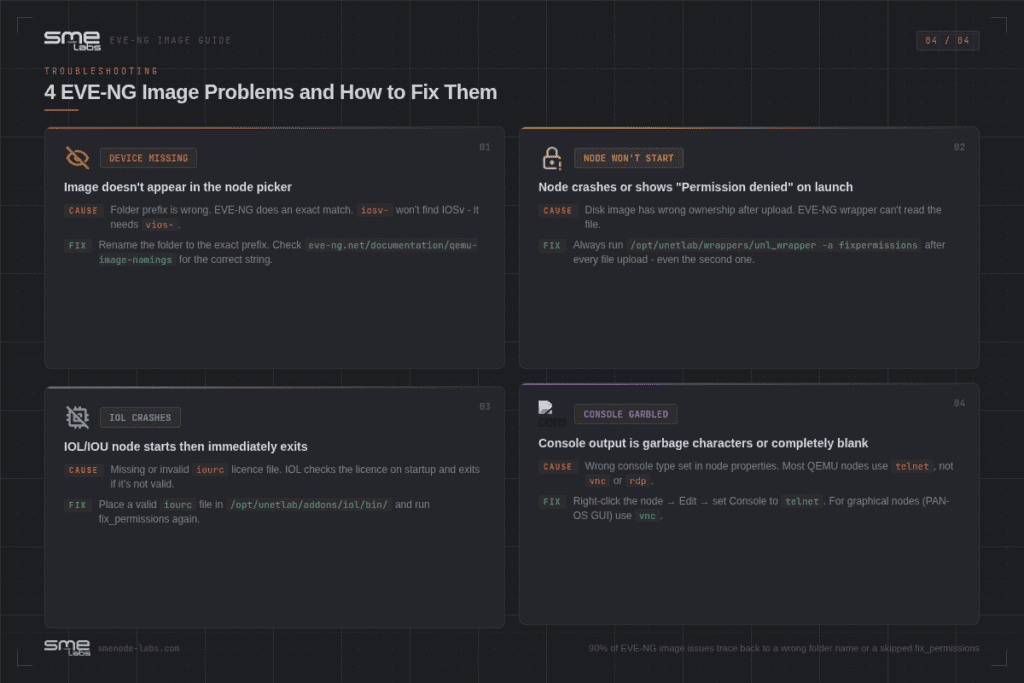
Device doesn’t appear in the node picker after upload
Check the folder prefix first. Compare your folder name character by character against the naming table in this article. iosv- won’t work where vios- is expected. Also check that the disk file inside the folder is named correctly (hda.qcow2 for most devices, virtioa.qcow2 for Palo Alto).
Device starts then immediately stops or crashes
For IOL devices, the IOU licence is probably the issue. The licence is bound to your EVE-NG hostname and domain name. If you changed the hostname after generating the licence, regenerate it with the current hostname.
For QEMU devices, check that nested virtualization is working. QEMU nodes need hardware virtualization passed through to the EVE-NG VM. On VMware Workstation, that’s the “Virtualize Intel VT-x/EPT” checkbox in the VM settings. On bare metal, it’s enabled in BIOS under Intel VT-x or AMD-V.
Permission denied when starting a node
Run fix_permissions. That’s almost always the cause.
Console shows garbage characters or no output
The console type might not match what the device expects. Most Cisco routers use telnet. Palo Alto and FortiGate use VNC or the HTML5 console. Right-click the node in EVE-NG, go to Edit, and check the console setting.
Raw VMDK file won’t upload or work
Some vendors package their images as VMDK (VMware format) instead of qcow2. You need to convert before uploading:
qemu-img convert -f vmdk source-image.vmdk -O qcow2 hda.qcow2Run that on your local machine or on the EVE-NG host, then move the output hda.qcow2 to the right folder.
Dynamips and IOL Images: Quick Setup
These work differently from QEMU images. Worth knowing if you’re using legacy Cisco IOS.
Dynamips images go in /opt/unetlab/addons/dynamips/ as .image or .bin files. No subfolder needed. Drop the file in as-is (e.g., c7200-adventerprisek9-mz.152-4.S7.image). Run fix_permissions. EVE-NG picks them up automatically.
IOL images go in /opt/unetlab/addons/iol/bin/ as executable .bin files. Two separate files exist: one for Layer 3 routing and one for Layer 2 switching. You also need an iourc licence file in the same folder. The licence is tied to your EVE-NG hostname, so keep that consistent.
IOL is worth using for large Cisco labs. It uses far less RAM than QEMU IOSv. A 15-router OSPF topology that needs 12 GB RAM with IOSv might need only 2 to 3 GB with IOL. The tradeoff is that IOL doesn’t support all IOS features, and modern IOS XE or SD-WAN topics aren’t available.
For large CCNA practice labs where you want many routers and switches running at once, IOL is honestly the better choice if you can source a licence.
Building Your First Lab After Adding Images
Once your images are uploaded and fix_permissions is done, here’s the quick path to your first EVE-NG lab:
- Log in to the EVE-NG web interface at
http://<eve-ip>/ - Click the hamburger menu, then Manage, then Labs
- Create a new lab or open an existing one
- Right-click the canvas and select Add a new node
- Pick your device from the list (e.g., vios for Cisco router)
- Set a name, icon, RAM, and console type
- Click Save, then right-click the node and click Start
If you’re starting from scratch with CCNA topics, our CCNA Lab Workbook gives you 40+ pre-built lab exercises with topology diagrams, configs, and verification steps. No time wasted figuring out what to practice. Just open a lab and go.
Frequently Asked Questions
Where can I download EVE-NG images?
There’s no single legal download hub for EVE-NG images. Multi-vendor images (FortiGate, Palo Alto, Juniper vSRX, Arista vEOS, Mikrotik CHR) are available directly from each vendor’s support portal or free trial programme with a registered account. For Cisco images, you need an active Cisco support contract to download from cisco.com, or you can download IOS for hardware you already own. The EVE-NG official documentation at eve-ng.net lists all supported image types.
What image format does EVE-NG use?
EVE-NG uses three formats depending on the device type. QEMU devices use .qcow2 disk images stored in /opt/unetlab/addons/qemu/. Dynamips (legacy Cisco) uses .image or .bin files in /opt/unetlab/addons/dynamips/. IOL/IOU uses executable .bin files in /opt/unetlab/addons/iol/bin/. Most modern devices, including all security and multi-vendor platforms, use the QEMU format.
Can I use GNS3 images in EVE-NG?
It depends on the image type. QEMU .qcow2 images work in both GNS3 and EVE-NG, so if you already have a compatible .qcow2 file for GNS3, you can upload it to EVE-NG with the correct folder name and it’ll work. Dynamips .image files also work in both. GNS3 appliance files (.gns3a) don’t transfer over, but the underlying disk image usually does.
Why is my image not showing up in EVE-NG after upload?
The most common cause is a wrong folder prefix. EVE-NG won’t display a device if the subfolder name doesn’t match its expected prefix. For example, Cisco IOSv needs vios- not iosv-. The second most common cause is forgetting to run fix_permissions after upload. Run /opt/unetlab/wrappers/unl_wrapper -a fixpermissions after every image upload and check the folder name against the naming table in this article.
What does the fix_permissions command do in EVE-NG?
The fix_permissions command resets file ownership and permissions for everything under /opt/unetlab/addons/. EVE-NG runs as a specific system user, and uploaded images need the right ownership to be accessible. Without it, a device might appear in the node picker but fail to start with a permission denied error. The full command is /opt/unetlab/wrappers/unl_wrapper -a fixpermissions. Run it every time you add or rename an image. Hitting a VT-x or Hyper-V error instead? Work through the EVE-NG install error triage.
Is it legal to use Cisco images in EVE-NG?
The legal status depends on how you got the images. Cisco requires a valid support contract to download IOS software from cisco.com. If you own physical Cisco hardware, downloading the IOS for that specific platform and running it in a lab for testing is generally accepted. Extracting images from the Cisco CML refplat ISO and using them in EVE-NG is a breach of Cisco’s CML EULA. For non-Cisco vendors (FortiGate, Palo Alto, Juniper, Arista), free evaluation images are available directly from the vendor.
Can EVE-NG Community Edition use QEMU images?
Yes. QEMU image support is available in both EVE-NG Community and EVE-NG Pro. The Community edition supports all the common QEMU-based devices including Cisco IOSv, IOS XE, ASAv, FortiGate, Palo Alto, and Juniper. The Pro edition adds multi-user support, role-based access, and a few additional console options, but the image support itself is the same.
How many images can I run at once in EVE-NG?
That depends entirely on your hardware, not EVE-NG itself. Each QEMU node uses the RAM and CPU you allocate. A typical Cisco IOSv instance needs 256 to 512 MB RAM. A FortiGate VM needs about 1 GB. A CSR1000v or Palo Alto needs 4 GB. On a machine with 32 GB RAM, you can run 8 to 12 light routers (IOSv) comfortably, or a mixed topology of 4 to 6 heavier nodes. IOL images are much lighter, often 128 to 256 MB each, so you can run significantly more on the same hardware.
Bottom Line
Adding EVE-NG images comes down to three things: get the folder prefix right, name the disk file right, and run fix_permissions after every upload.
The legal side is worth taking seriously, especially for Cisco images. For multi-vendor platforms, trial images from FortiGate, Palo Alto, Juniper, and Arista are freely available from each vendor’s portal. For Cisco, a used physical device plus its legitimate IOS download is the cleanest path.
Get the naming right once and you won’t have to think about it again. The table in this article covers every common device you’ll encounter in CCNA, CCNP, and most security certification labs.