
What Is Cisco Port Security?
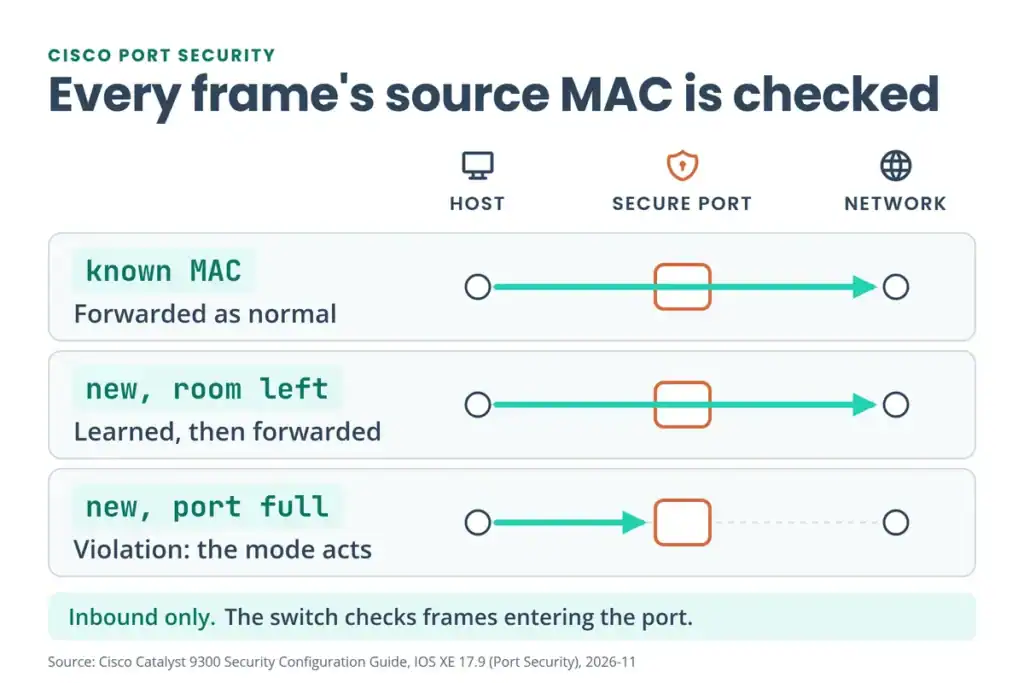
Cisco port security is a Layer 2 switch feature that limits which source MAC addresses can send frames into a port, and how many. If a frame arrives from a MAC address that isn’t allowed, the switch drops it. Depending on the violation mode, it also logs the event or shuts the port down.
It’s off by default. It stops three common problems:
- A rogue laptop. Someone plugs into a free wall socket. The MAC isn’t on the list, so the switch blocks it.
- A mini switch under a desk. One wall port suddenly shows several MAC addresses and goes over its limit.
- MAC flooding. An attacker sends frames with made-up source MACs to fill the MAC table. A small maximum stops the flood after the first few.
The switch reads only the source MAC of frames that enter the port. It doesn’t check who the device really is.
| Setting | Default on a Cisco switch |
|---|---|
| Port security | Disabled on the port |
| Maximum secure MAC addresses | 1 |
| Violation mode | Shutdown |
| Learning | Dynamic (sticky learning is off) |
| Aging time | 0 (aging is off) |
| Aging type | Absolute |
| Static aging | Disabled |
Source: Cisco’s Catalyst 9300 port security guide for IOS XE 17.9. Your image may differ, so confirm with show port-security interface.
So with the defaults, the first device to send a frame wins the only slot. Any other device makes the port shut down.
How Do You Configure Port Security on a Cisco Switch?
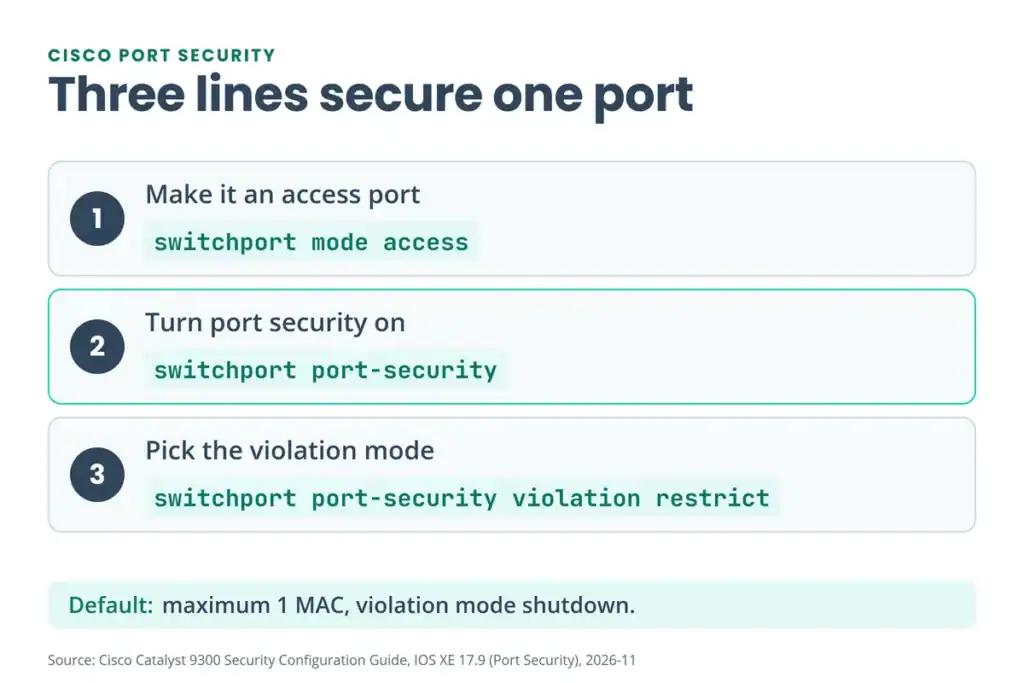
Set the port to access mode first, then turn port security on. Cisco’s guide says a secure port can’t be a dynamic-mode port, and a port left in the default dynamic auto mode is refused. It does allow static access ports and trunk ports.
SW1(config)# interface g0/1
SW1(config-if)# switchport mode access
SW1(config-if)# switchport port-security
SW1(config-if)# switchport port-security maximum 2
SW1(config-if)# switchport port-security mac-address sticky
SW1(config-if)# switchport port-security violation restrict
Here’s what each line does:
switchport mode accessmakes the port carry one end device, not a trunk.switchport port-securityturns the feature on with the defaults above.maximum 2lets the port hold two secure MACs, for example a PC and a phone.mac-address stickylearns MACs and saves them in the running config.violation restrictdrops bad frames, keeps the port up and logs each one.
Every secure MAC counts toward the maximum, including the ones you type by hand. If you want two typed MACs, set the maximum to at least 2 first.
Port Security Violation Modes: Shutdown vs Restrict vs Protect
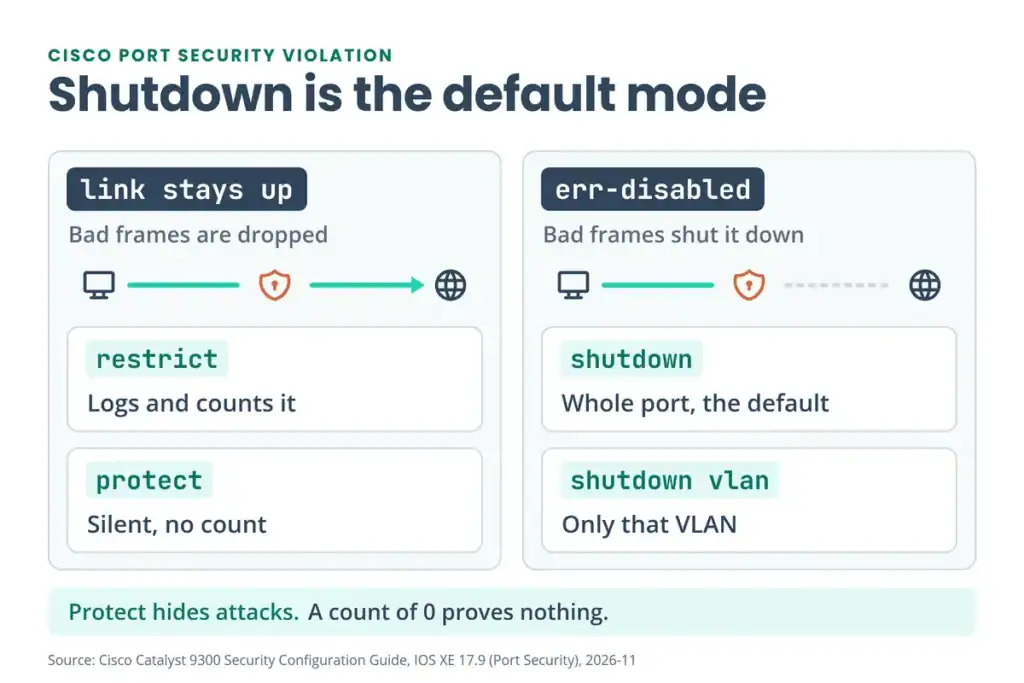
A violation is a frame from a MAC that isn’t allowed, or a port that goes over its maximum. You choose one of three reactions with switchport port-security violation.
| Shutdown | Restrict | Protect | |
|---|---|---|---|
| Frames from the unauthorized MAC | Dropped | Dropped | Dropped |
| Port state | Err-disabled (off) | Stays up | Stays up |
| The legitimate device | Loses its link too | Keeps working | Keeps working |
| Syslog message | Yes | Yes | No |
| Violation counter | Increases | Increases | Doesn’t increase |
| How the port recovers | Manually or with errdisable recovery | Nothing needed | Nothing needed |
| Default | Yes | No | No |
Source: the same Cisco Catalyst 9300 guide, IOS XE 17.9.
Cisco also has a fourth option, shutdown vlan. It err-disables only the VLAN where the violation happened, not the whole port.
Which violation mode should you choose?
| Situation | Mode | Why |
|---|---|---|
| Server port, one known device | Shutdown | Any other device is an alarm worth an outage |
| Reception desk that must stay up, but IT wants alerts | Restrict | The port stays up and the log tells you |
| Lab port where extra devices are just noise | Protect | Quiet, but you lose visibility |
Protect hides attacks. A violation count of 0 and no log lines on a protect port doesn’t prove nobody tried. Cisco also advises against protect mode on trunk ports.
Static, Dynamic and Sticky Secure MAC Addresses
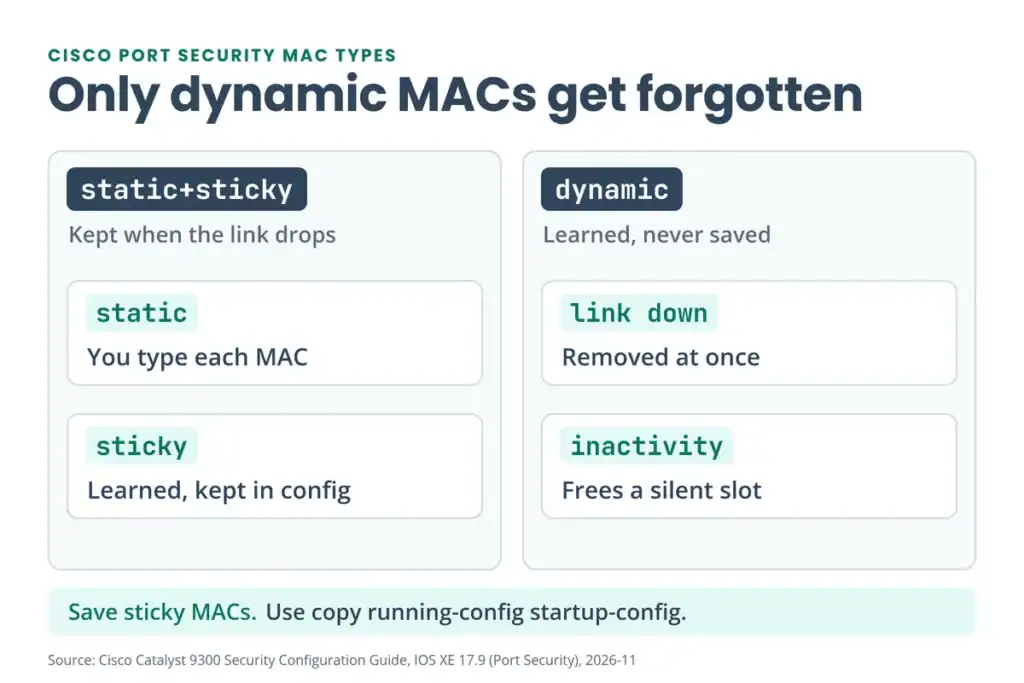
A secure MAC address is a MAC the switch has accepted for a port. It can get there three ways.
| Static | Dynamic | Sticky | |
|---|---|---|---|
| How it gets there | You type it | The switch learns it | The switch learns it, then writes it to the config |
| Survives the port going down | Yes | No | Yes |
| In the running config | Yes | No | Yes |
| Ages out | Only with aging static | Only if aging is on | No |
Cisco removes dynamic secure MACs the moment a port disconnects, even when inactivity aging is on. That one fact explains most “why did the wrong device get in?” questions. After a link flap, the first device to talk becomes the new secure MAC.
Sticky has two traps. The learned MAC lives only in the running config, so save it with copy running-config startup-config or you’ll lose it at the next reload. And sticky locks in the first device it sees, even if that device was the wrong one.
Which type fits your port?
- One fixed server: static MAC, maximum 1, shutdown mode.
- One desk PC, no typing: sticky, maximum 1.
- Hot desks that change over time: dynamic with inactivity aging.
How Do You Fix a Port in err-disabled State?
A port in err-disabled state was shut down by a violation. The log shows psecure-violation as the reason. Fix it in this order:
- Find the offender. Run
show port-security interface g0/1and read theLast Source Address:Vlanline. After a violation, it names the device that caused it. - Remove that device. Unplug it, or stop it in your lab.
- Re-enable the port. Enter
shutdown, thenno shutdown, on the interface.
Order matters. A dynamic secure MAC is forgotten when the port goes down, so after no shutdown the first device to talk wins. If the intruder is still plugged in and talks first, the port now trusts the intruder.
To bring ports back by themselves, turn on errdisable recovery. Cisco names the command in its guide:
SW1(config)# errdisable recovery cause psecure-violation
SW1(config)# errdisable recovery interval 30
Recovery doesn’t check that the offender is gone. It only turns the port on again. If the wrong device keeps talking, the port goes down, comes up, hits a violation and goes down again, over and over.
Port Security Aging: Absolute vs Inactivity
Aging gives a dynamic secure MAC a lifetime. When it ends, the MAC is removed and the slot is free for a different device. Cisco’s valid range for the aging time is 0 to 1440 minutes, and 0 means aging is off.
| Absolute (default) | Inactivity | |
|---|---|---|
| Timer starts | When the MAC is learned | At the last frame from that MAC |
| Reset by traffic | No | Yes, every frame resets it |
| A busy device | Removed, then learned again by its next frame | Never removed |
| A silent device | Removed when time is up | Removed after the full silent period |
Cisco states that the switch doesn’t support aging of sticky secure addresses. Static addresses age only when you add switchport port-security aging static.
SW3(config-if)# switchport port-security aging time 2
SW3(config-if)# switchport port-security aging type inactivity
Use inactivity aging on hot desks and meeting rooms. When the old laptop goes quiet, its slot frees up for the next one.
How Do You Verify Port Security?
Run these five commands. They answer most questions without a debug.
| Command | What it shows |
|---|---|
show port-security | One line per secure port: maximum, current count, violations, action |
show port-security interface g0/1 | Status, mode, aging, counts and the last source MAC |
show port-security address | Secure MACs with their remaining age |
show mac address-table secure | The secure MACs in the MAC table |
show interfaces status err-disabled | Ports shut down by an error, with the reason |
On show port-security interface, read the Port Status line. Secure-up means working, Secure-down means nothing is connected, and Secure-shutdown means a violation shut the port down. If Total MAC Addresses equals Maximum MAC Addresses, the port is full, and the next new MAC is a violation.
In show mac address-table secure, sticky MACs show as STATIC. Don’t read that as “typed by hand”. Check the Configured and Sticky counts, or the running config, to tell them apart.
Can Port Security Stop MAC Spoofing?
No. Port security trusts the source MAC in the frame. A device that copies an allowed MAC looks identical to the switch. Anyone who can read a label on a device, or watch traffic, can learn an allowed MAC.
So treat port security as a cheap first fence, not a lock. It stops accidents and casual attacks. For stronger control, add 802.1X for real authentication, and DHCP snooping and Dynamic ARP Inspection for fake DHCP and ARP messages. Our DHCP snooping PDF shows how those features compare with port security.
Cisco lists it in the exam blueprint. CCNA 200-301 v1.1 has objective “5.7 Configure and verify Layer 2 security features (DHCP snooping, dynamic ARP inspection, and port security)”. The v2.0 blueprint has “4.7 Configure Layer 2 security features” with “4.7.e Port security”. See Cisco’s v1.1 exam topics and v2.0 exam topics. Our free CCNA 200-301 PDF and CCNA practice test PDF cover the rest of that blueprint.
Cisco Port Security Cheat Sheet
| Job | Command |
|---|---|
| Make the port an access port | switchport mode access |
| Turn port security on | switchport port-security |
| Set the maximum | switchport port-security maximum <n> |
| Add a static MAC | switchport port-security mac-address <mac> |
| Turn sticky learning on | switchport port-security mac-address sticky |
| Set the violation mode | switchport port-security violation shutdown|restrict|protect |
| Set the aging time (minutes) | switchport port-security aging time <n> |
| Set the aging type | switchport port-security aging type absolute|inactivity |
| Let static MACs age | switchport port-security aging static |
| Turn automatic recovery on | errdisable recovery cause psecure-violation |
| Re-enable a port by hand | shutdown, then no shutdown |
| Clear dynamic secure MACs | clear port-security dynamic interface <int> |
| Remove port security from a port | no switchport port-security |
For the rest of the everyday switch and router commands, see our Cisco commands cheat sheet PDF.
What Are the Most Common Port Security Mistakes?
| Mistake | What happens | Fix |
|---|---|---|
Typing switchport port-security on a dynamic-mode port | IOS rejects the command | Set switchport mode access first |
| Re-enabling the port with the intruder still connected | The intruder talks first and becomes trusted, or the port shuts down again | Remove the device, then shutdown and no shutdown |
| Using protect mode and trusting a count of 0 | Attacks go unseen | Use restrict if you want alerts |
Forgetting copy running-config startup-config | Sticky MACs vanish at reload | Save after the MACs are learned |
| Setting maximum 1 behind a mini switch | The second device triggers a violation | Set the maximum to the number of devices you allow |
| Leaving a stale dynamic MAC on a port with no aging | A replacement device is blocked even though the old one is gone | Turn on inactivity aging, or clear the dynamic MACs |
What Does the Free PDF Cover, and Where Does It Stop?
The PDF teaches port security from the ground up, then makes you practise it. It covers why port security exists, enabling it, reading the show commands, err-disabled recovery, the violation modes, aging, sticky MACs and the MAC table. After the theory, it gives you seven labs on one three-floor network, break-it-then-fix-it drills, a master test matrix and a quick reference.
Here’s where it stops. The labs are written for a GNS3 build with an IOS Layer 2 switch image, so you need to bring your own lab software and images. Our guide to adding router and switch images to EVE-NG covers that side. Voice VLANs and per-VLAN limits get only a short preview. 802.1X, DHCP snooping and Dynamic ARP Inspection aren’t configured at all.
Do you want the next step? The CCNA Lab Workbook has a security lab that covers port security and DHCP snooping, plus the rest of the CCNA topics in lab form.


No questions yet. Ask the first one.