Fourteen network troubleshooting commands cover almost every connectivity problem you’ll hit, on Windows, PowerShell or Linux. This free cheat sheet lists each one with its exact syntax, what the output actually means, and the order to run them in, so you stop guessing and start isolating the fault in minutes.
Network Troubleshooting Tools You Already Have Installed
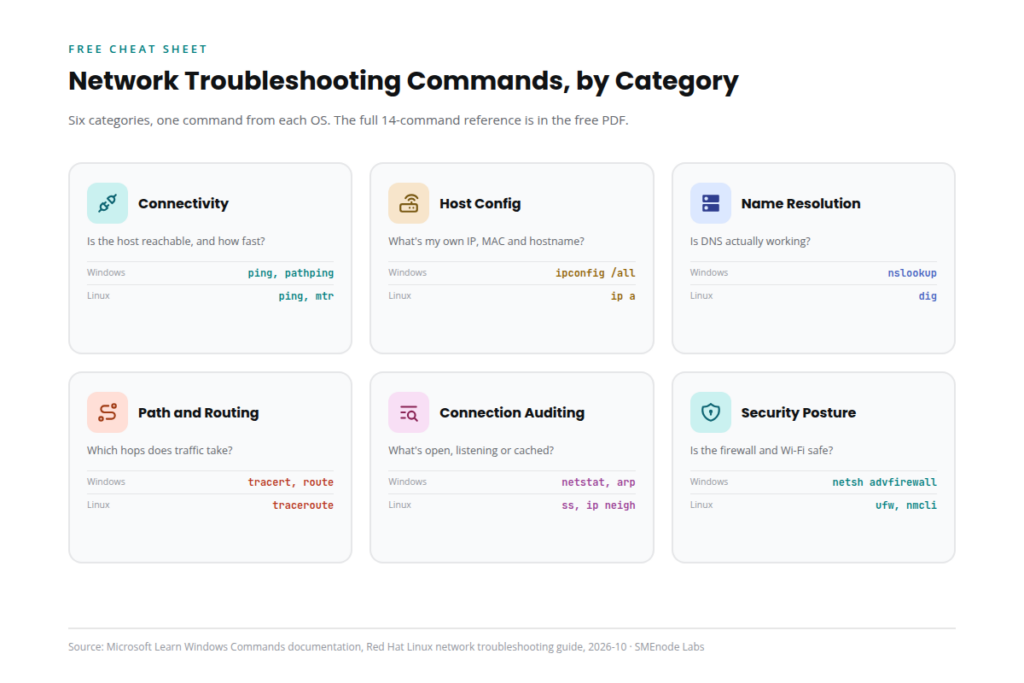
Every operating system ships with its own network troubleshooting tools built in. You don’t need Wireshark, a paid monitoring suite or a third-party app for 90% of connectivity problems. Windows, macOS and Linux all include the same core categories of command, just under slightly different names:
| Category | What it tests | Windows | Linux |
|---|---|---|---|
| Connectivity | Is the host reachable, and how fast? | ping, pathping | ping, mtr |
| Host configuration | What’s my own IP, MAC and hostname? | ipconfig, getmac, hostname | ip a, hostname |
| Name resolution | Is DNS actually working? | nslookup | dig, nslookup |
| Path and routing | Which hops does traffic take? | tracert, route | traceroute, ip route |
| Connection auditing | What’s open, listening or cached? | netstat, arp | ss, ip neigh |
| Security posture | Is the firewall and Wi-Fi configured safely? | netsh advfirewall, netsh wlan | ufw, nmcli |
Each one tests a different layer. Once you know which layer is broken, you’ve cut your troubleshooting time by more than half.
Windows Networking Commands in CMD and PowerShell
This table covers the core networking commands Windows ships with by default, and every one of them runs identically in Command Prompt (cmd.exe) or PowerShell. A handful (releasing a DHCP lease, editing firewall rules) need an elevated prompt; the rest work from any standard session. If you searched for commands for network troubleshooting specifically on cmd rather than PowerShell, this cmd network troubleshooting commands table is cmd-first; every command below works unchanged in a PowerShell window too.
| Command | Syntax | What it does |
|---|---|---|
| PING | ping [-t] [-n count] target | Sends ICMP Echo Requests, reports round-trip time and packet loss |
| IPCONFIG | ipconfig /all | Shows every adapter’s IP, subnet, gateway, DHCP and DNS server |
| GETMAC | getmac /v | Lists the MAC address and transport name of every adapter |
| HOSTNAME | hostname | Prints the machine’s configured name |
| NSLOOKUP | nslookup -type=MX domain.com | Queries a DNS server directly, supports MX, NS and TXT record lookups |
| TRACERT | tracert -d target | Maps every router hop to a destination with round-trip time per hop |
| NETSTAT | netstat -ano | Lists active connections, listening ports and the owning process ID |
| ARP | arp -a | Shows the local IP-to-MAC address cache |
| PATHPING | pathping target | Combines tracert’s path map with per-hop packet-loss percentages |
| SYSTEMINFO | systeminfo | OS version, boot time, memory and installed hotfixes |
| ROUTE | route print | Shows the local routing table and the default gateway |
| WHOAMI | whoami /fqdn | Confirms the logged-on identity and domain context |
| NETSH ADVFIREWALL | netsh advfirewall show allprofiles | Shows whether the firewall is on and which rules are active |
| NETSH WLAN | netsh wlan show interfaces | Current SSID, signal strength and the Wi-Fi security protocol in use |
ipconfig /flushdns deserves its own mention: it clears the local DNS resolver cache, which fixes a surprising number of “the site still shows the old content” complaints that have nothing to do with the server itself. Full official syntax reference: Microsoft Learn, Windows Commands: ipconfig.
Linux and Ubuntu Networking Commands for Troubleshooting
Linux networking commands map almost one-to-one to their Windows counterparts, just with different names and sharper output. On Ubuntu and most modern distributions, ifconfig is deprecated in favour of ip. If you need network troubleshooting commands in Linux specifically for configuring an interface, not just inspecting it, see the note below the table.
| Windows command | Linux equivalent | Notes |
|---|---|---|
| ipconfig /all | ip a or ip addr show | Shows IP, subnet and interface state |
| ping | ping -c 4 target | -c bounds the count, Linux ping runs forever by default |
| tracert | traceroute target or mtr target | mtr combines trace and continuous ping in one view |
| nslookup | dig domain.com | dig gives more detail on the DNS response than nslookup |
| netstat | ss -tulnp | ss is the modern, faster replacement for netstat |
| arp -a | ip neigh | Same IP-to-MAC cache, new command family |
| route print | ip route | Shows the routing table and default gateway |
| netsh wlan | nmcli device wifi list | Lists visible networks and signal strength |
| netsh advfirewall | ufw status verbose | Ubuntu’s simplified firewall front end |
If you’re configuring a network interface from the Linux command line rather than just inspecting it, ip addr add and ip link set are the two commands that actually change settings, where everything above only reads them. For the full command-line reference, see the Linux Commands Cheat Sheet PDF: 64 Commands, 7 Groups, which covers these in more depth alongside file, process and permission commands. Red Hat’s own writeup of the Linux side of this list is worth a read too: 5 Linux network troubleshooting commands.
Basic Networking Commands Everyone Should Know First
If you only remember four basic networking commands, make them these. They cover the four questions every connectivity problem starts with: is it up, what’s my address, where does it break, and does the name resolve?
- ping, the fastest reachability check there is
- ipconfig /all (Windows) or ip a (Linux), your own address and gateway
- tracert (Windows) or traceroute (Linux), where the path actually breaks
- nslookup (Windows) or dig (Linux), whether DNS is the problem
Everything else in this cheat sheet builds on these four. A ping commands in networking habit worth building early: always ping loopback (127.0.0.1) before anything remote, since it proves your own TCP/IP stack is alive before you blame the network.
How to Troubleshoot Network Issues: A Step-by-Step Workflow
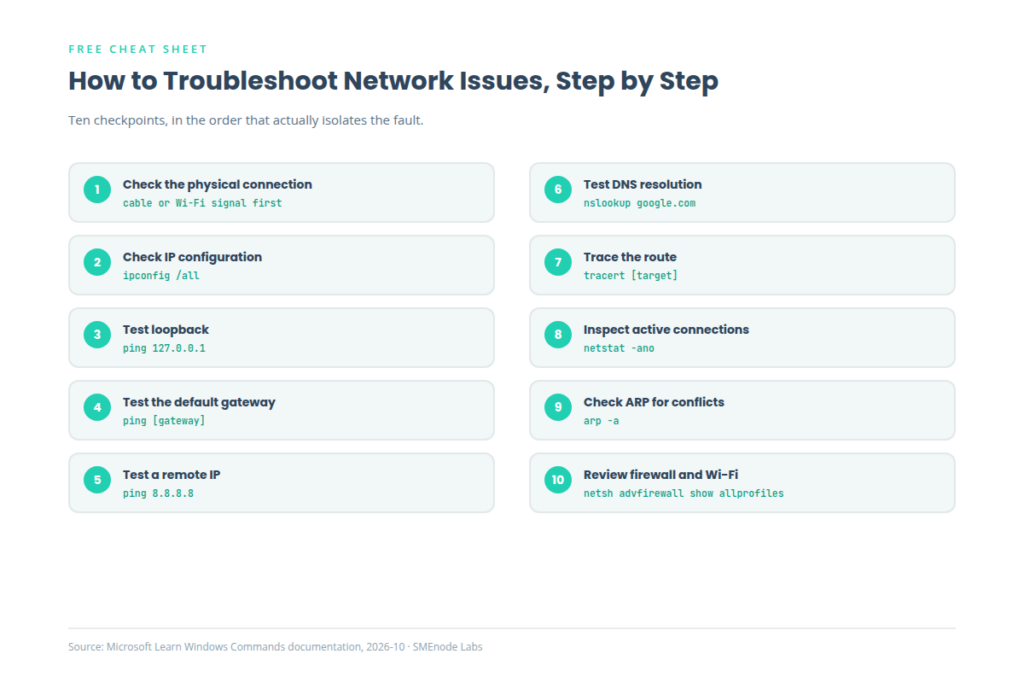
Knowing the commands is half the job. Knowing the order to run them in is the other half, and it’s the part most beginners skip. Here’s how to troubleshoot network issues without wasting time on the wrong layer first:
- Check the physical connection. Cable seated, Wi-Fi adapter showing a signal. No command fixes a disconnected cable.
- Check IP configuration with
ipconfig /allorip a. An APIPA address (169.254.x.x) means DHCP never answered. - Test loopback,
ping 127.0.0.1, to confirm your own TCP/IP stack works. - Test the default gateway to isolate whether the fault is local or beyond your router.
- Test a remote IP like
ping 8.8.8.8, bypassing DNS entirely. - Test DNS resolution with
nslookup, now that raw connectivity is already proven. - Trace the route if the connection is only partially working or slow.
- Inspect active connections with
netstat -anoorss -tulnpfor anything unexpected. - Check ARP to rule out an IP or MAC conflict on the local segment.
- Review firewall and Wi-Fi settings last, once the simpler causes are ruled out.
This order matters because it follows the actual dependency chain: there’s no point tracing a route if your own IP configuration is broken. It’s the same sequence whether you’re trying to figure out how to troubleshoot network connectivity issues on a single laptop or how to troubleshoot network connection problems affecting a whole office. If you want the reasoning behind each layer, not just the command list, the official Microsoft troubleshooting documentation covers the Windows side in depth: Microsoft Learn, Network troubleshooting.
Troubleshooting Specific Problems: Wi-Fi, Switches and Latency
A handful of scenarios come up often enough that they deserve their own notes, beyond the general 10-step workflow above.
How to troubleshoot wireless network problems: run netsh wlan show interfaces (Windows) or nmcli device wifi list (Linux) first. Signal quality under roughly 50% explains most “my Wi-Fi keeps dropping” complaints before you even look at the router. netsh wlan show drivers catches an outdated driver as the real cause, and this is also how to troubleshoot intermittent network connectivity issues specifically, since a flaky driver drops and reconnects instead of failing outright.
How to troubleshoot a network switch: most switch problems show up as a port stuck in the wrong VLAN or a cable fault, not a software bug. From a connected host, arp -a and ipconfig /all confirm whether the host even sees the right subnet before you go anywhere near the switch’s own CLI.
How to troubleshoot network latency and packet loss, and how to troubleshoot slow network performance generally: ping gives you the baseline number, but pathping (Windows) or mtr (Linux) is what actually tells you which hop is losing packets, not just that loss is happening somewhere along the path. That’s the real answer to how to use traceroute to troubleshoot network problems where tracert alone only shows the path, not where it’s actually dropping packets, and it’s exactly how to troubleshoot network performance complaints that ping alone can’t explain.
Windows 11 and Linux specific notes: nothing in this cheat sheet changed with Windows 11, the same 14 commands still work exactly as documented above, so anyone searching how to troubleshoot network issues in Windows 11 specifically can use the Windows table as is. On the Linux side, how to troubleshoot network problems in Linux comes down to the same ip, ss and dig commands in the equivalent table, and how to configure network in Linux command line (as opposed to just inspecting it) means ip addr add and ip link set, covered in the note above.
What’s Inside the Network Troubleshooting Commands PDF
This network troubleshooting commands pdf turns the tables above into one printable reference:
- All 14 Windows commands with exact syntax and the flags worth memorising
- The Linux and Ubuntu networking commands equivalent for every Windows command listed
- The 10-step troubleshooting workflow as a single-page flowchart
- A security note on each command (several of these same tools are also used for reconnaissance, so it’s worth knowing both sides)
If you need Cisco IOS show commands specifically rather than OS-level ones, that’s a separate reference: our cisco networking commands pdf, the Cisco Commands Cheat Sheet (200+ Types), covers switch and router CLI syntax, not the host-level tools on this page. And if you want a broader linux network commands cheat sheet that goes beyond networking into file, process and permission commands, the Linux Commands Cheat Sheet PDF above is the one to grab.
Who This Networking Commands Cheat Sheet Is For
Network admins use these commands daily to verify IP settings and DNS across dozens of machines. SOC analysts lean on netstat and arp specifically, since an unexpected listening port or a duplicate MAC-to-IP mapping is often the first sign something’s wrong. Help desk teams get the most value from the 10-step workflow, since first-line diagnosis is mostly about ruling things out in the right order. If you’re a student building these skills for the first time, the commands here map directly onto what the Free CCNA 200-301 PDF assumes you already know before you even start on routing protocols, and the CCNA Workbook gives you 75 hands-on labs in EVE-NG and Packet Tracer to practice the troubleshooting workflow on real topologies instead of a single host.”
Related Workbook
CCNA Workbook ($99)
This cheat sheet gets you through a connectivity problem on a single host. The workbook builds the deeper skill: 75 hands-on labs in EVE-NG and Packet Tracer covering Layer 2 switching, VLANs, OSPF, ACLs and NAT, the network-level troubleshooting that these commands only verify from the outside. If you’re prepping for the CCNA 200-301 exam, start with the CCNA Workbook.