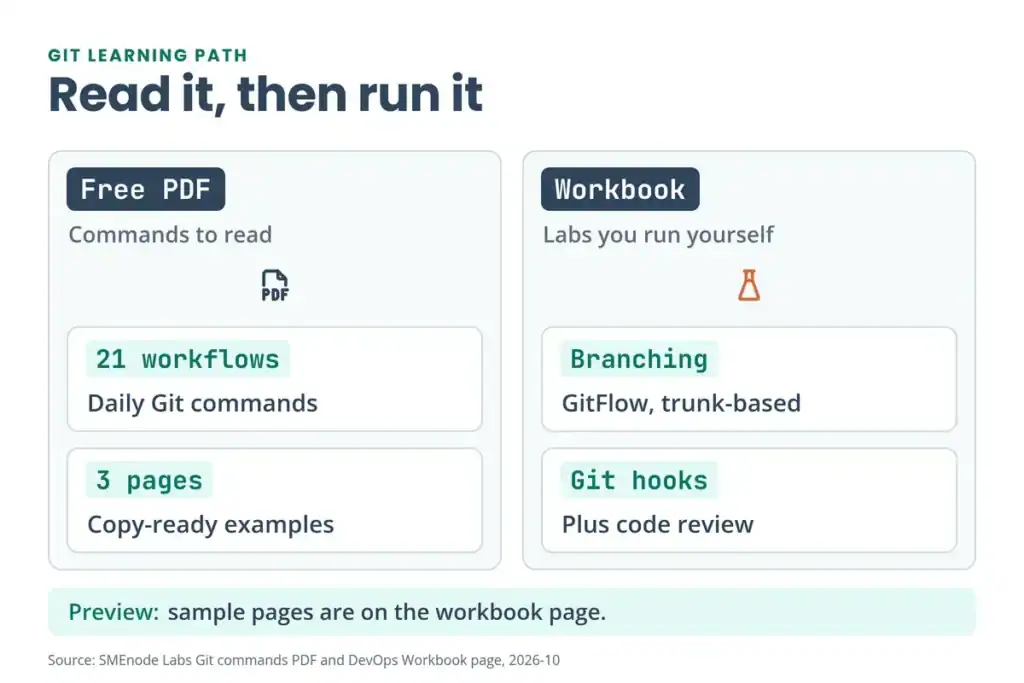
Git commands are the instructions you type to track changes, branch and share code. Start with nine basics: git init, git clone, git status, git add, git commit, git push, git pull, git switch and git merge, plus git config, git diff, git log and git restore around them. Then learn the commands for daily work: git stash, git rebase, git reset, git reflog and git tag. This free PDF has 21 daily-use Git workflows. This page puts the basics first and the advanced commands after
What are Git commands?
Git commands are the instructions you give to Git, the version control system, to record, compare and share changes to your files. You run them in a terminal, and each one starts with git. According to the Pro Git book, your files are always in one of three states: modified, staged or committed. git add moves a change from modified to staged, and git commit moves it from staged to committed. Those states match three areas: the working tree, the staging area (also called the index) and the Git directory.
New to the terminal itself? Keep our Linux commands cheat sheet open next to this one.
Git basic commands: the 9 you need first
These nine cover most of what you’ll type in your first month. They follow the order of a normal day: set up, look, stage, save, share, branch, merge. Each one has a short section below, with the extra commands that sit around it.
| Command | What it does | Example |
|---|---|---|
git init | Creates a new repository in the current folder | git init -b main |
git clone | Copies an existing repository, with its history | git clone <url> |
git status | Shows changed, staged and untracked files | git status |
git add | Stages changes for the next commit | git add <file> |
git commit | Saves the staged changes as a commit | git commit -m "message" |
git push | Uploads your commits to the remote | git push -u origin main |
git pull | Fetches the remote branch and integrates it | git pull |
git switch | Switches branches (-c creates one first) | git switch -c <branch> |
git merge | Brings another branch’s commits into yours | git merge <branch> |
Set up Git once: git config
Tell Git who you are before your first commit. Without a name and email, the first commit fails with “Author identity unknown”.
git config --global user.name "Your Name"
git config --global user.email "yo*@*****le.com"
git config --global init.defaultBranch main
git config list
According to Git’s git config documentation, --global writes to your ~/.gitconfig file, so the settings apply to every repository you use, while --local (the default) writes to that repository’s .git/config. git config list shows every variable that’s set. The third line sets the name of the first branch in new repositories. The git init documentation says the built-in default is currently master and changes to main in Git 3.0, so set it yourself.
Start a repository: git init and git clone
git init turns the current folder into a repository. According to the git init documentation, it creates an empty repository, a .git directory, and an initial branch with no commits. -b names that branch. git clone copies a repository that already exists.
git init -b main
git clone <url>
According to the git clone documentation, a clone creates remote-tracking branches for every branch in the original and checks out an initial branch forked from the original’s active branch. The remote it keeps track of is called origin unless you change it.
See what changed: git status, git diff and git log
Three read-only commands show where you are. Run git status before and after every step.
git status
git status -s
git diff
git diff --staged
git log --oneline --graph -5
According to the git status documentation, it shows three things: what differs between the index and your last commit (what you would commit), what differs between your working tree and the index (what you could still add), and files Git doesn’t track. -s gives the short format. git diff shows changes you haven’t staged yet, and git diff --staged shows what you’ve staged compared with the last commit (--cached is a synonym). git log shows the commit history. --oneline prints one line per commit, --graph draws the branches as text, and -5 limits the output to five commits.
Stage and save: git add and git commit
Saving work takes two steps. git add stages the changes you want, and git commit stores them. According to the git add documentation, it adds only the content of the file at the moment you run it, so if you edit the file again, you must run git add again.
git add <file>
git add -p
git commit -m "feat(user): add employee filter"
git commit -a -m "fix(auth): handle expired token"
git add -p lets you review each hunk before you stage it. According to the git commit documentation, a commit holds the current contents of the index plus your message, and the branch moves to point at it. -m gives the message on the command line. -a stages files you’ve modified or deleted, but it doesn’t pick up new files that Git doesn’t know about yet. The commit message format used above is explained in the conventions section.
Undo before you commit: git restore
Staged the wrong file? git restore fixes it without touching your commits.
git restore --staged <file>
git restore <file>
According to the git restore documentation, --staged restores only the index, so the file is unstaged and your edits stay. Without --staged, the working tree is restored, which replaces the file with its saved version and loses your unsaved edits to it. Check git status first.
Share your work: git remote, git fetch, git pull and git push
A remote is a copy of your repository somewhere else, such as GitHub. A clone sets up origin for you. For a repository you created with git init, add the remote yourself.
git remote add origin <url>
git remote -v
git push -u origin main
git fetch origin
git pull
According to the git remote documentation, git remote add gives a remote a name, and git fetch origin then creates and updates the remote-tracking branches such as origin/main. -v shows the URLs. According to the git push documentation, git push updates the branches on the remote and sends the data that isn’t there yet. -u (--set-upstream) records the upstream branch, so a later git pull or git push needs no arguments. According to Git’s git pull documentation, git pull runs git fetch and then integrates the remote branch, and you can choose how: fast-forward only, rebase or merge.
Branch and merge: git branch, git switch and git merge
A branch is a separate line of work. Create one for every task, then merge it back.
git branch
git switch -c feature/FA-123/add-user-filter
git switch main
git merge feature/FA-123/add-user-filter
git branch -d feature/FA-123/add-user-filter
According to the git branch documentation, git branch on its own lists your branches and marks the current one with an asterisk, and git branch <name> creates a branch but doesn’t switch to it. git switch -c does both. According to the git merge documentation, git merge brings the changes from the named branch into your current one. If your current branch is an ancestor of the other, Git just moves HEAD forward and creates no extra merge commit (a fast-forward). git branch -d deletes a branch only if it’s fully merged. The force version, -D, comes up in the next section.
Ignore files: .gitignore
Some files should never be committed: logs, build output, dependency folders. List them in a .gitignore file at the top of the repository.
# .gitignore
node_modules/
*.log
!important.log
According to the gitignore documentation, a trailing slash matches only directories, * matches anything except a slash, and a leading ! brings a file back in. It only affects files Git isn’t tracking yet. A file that’s already committed stays tracked.
Version control with Git is part of the CCNA Automation (200-901) exam too. Our guide to the Python network automation skills that get you hired explains why employers ask about Git almost as much as Python.

Git commands list: every command in this cheat sheet
Use this table as your map. The basics are in the first four rows, and each advanced row has its own section below.
| Group | Commands |
|---|---|
| Set up and start | git config, git init -b main, git clone |
| See what changed | git status, git diff, git diff --staged, git log --oneline --graph |
| Stage and save | git add, git add -p, git commit, git commit -a, git restore --staged |
| Share | git remote add, git push -u, git fetch --all --prune, git pull, git push --force-with-lease |
| Branch | git branch, git branch -d, git branch -D, git switch -c, git checkout -b, git merge |
| Set work aside | git stash push -m, git stash list, git stash pop |
| Rewrite history | git rebase, git rebase -i, git rebase --abort, git commit --amend |
| Undo | git reset --soft, git reset --hard, git merge --abort, git reflog |
| Inspect | git show, git blame, git diff <branch>..<branch> |
| Release and modules | git tag, git submodule update |
Go deeper
Git is easy to read and easy to break.
This PDF gives you the commands. The DevOps Certification Workbook gives you the practice, starting with a Foundations chapter on Linux, Bash and Git: Git fundamentals, branching strategies such as GitFlow and trunk-based, pull requests and code review, and Git hooks. Run it, break it, fix it.
See the DevOps Certification Workbook →Git branch commands: create a branch from the latest base branch
Start every task from an up-to-date base branch. Switch to it, pull, then create your branch. Replace main with your team’s base branch (the PDF uses one called hotfix).
git switch main
git pull origin main
git switch -c feature/your-task-name
git checkout -b feature/your-task-name does the same job. According to Git’s git switch documentation, -c is the transactional equivalent of git branch followed by git switch.
To get a clean local copy of a remote branch, delete the local one and create it again. You can’t delete the branch you’re standing on, so switch away first.
git switch main
git branch -D beta
git fetch origin
git switch -c beta origin/beta
Git fetch, rebase and push –force-with-lease: update your branch after a merge
After your pull request is merged, bring your next branch up to date: refresh the base branch, clean up stale remote references, rebase and push.
git switch main
git pull origin main
git fetch --all --prune
git switch feature/my-branch
git rebase main
git push --force-with-lease
git fetch --all --prune fetches from every remote and removes references to branches that no longer exist there. Rebasing rewrites your branch’s commits, so a normal push is rejected and you need a force push. Use --force-with-lease, not --force. According to Git’s git push documentation, --force-with-lease updates the remote only if it still has the value you expect, and plain --force “can cause the remote repository to lose commits”.
Git stash command: set unrelated changes aside
git stash saves your uncommitted changes and gives you a clean working directory, so you can rebase or switch branches without committing half-finished work. Name the stash so you can find it later.
git stash push -m "temp: local change not for PR"
git fetch origin
git rebase origin/main
git add <file>
git rebase --continue
git push --force-with-lease
git stash pop
git stash list
git add <file> and git rebase --continue are only needed if the rebase stops on a conflict. git stash pop applies the stash and removes it from the list, and git stash apply applies it and keeps it. git stash list shows every stash. Untracked files aren’t stashed unless you add -u. The git stash documentation has the full option list.

Git rebase command: squash commits and abort a rebase
An interactive rebase lets you squash several commits into one before you merge. Rebase the last N commits, or everything since you branched.
git rebase -i HEAD~3
git rebase -i main
git push --force-with-lease
In the editor, keep the first commit as pick and change the commits after it to squash. Then edit the final commit message. Push with --force-with-lease only if the branch was already pushed. If the rebase gets messy, abort it:
git rebase --abortThat returns the branch to the state it was in before the rebase started. For the last few commits, Git’s git reset documentation shows a second way: git reset --soft HEAD~5 followed by git commit combines the last five commits into one.
Git merge vs rebase: which one should you use?
Use merge when you want to keep the record of what actually happened, and rebase when you want a clean, linear history. A merge joins two branches and leaves both histories as they were. A rebase replays your commits on top of another branch, which creates new commits and abandons the old ones. According to the Pro Git book, the rule is: do not rebase commits that exist outside your repository and that people may have based work on.
A safe pattern: rebase your own feature branch before you push it, and never rebase shared branches such as main. If a merge goes wrong, back out of it:
git merge --abortThis is the question interviewers ask most, and our DevOps interview questions PDF covers merge versus rebase and when never to rebase.
Git undo last commit: amend, reset soft and reset hard
Pick the undo that matches what you want to keep. All four commands below come from the PDF.
| You want to | Command | What happens |
|---|---|---|
| Fix the last commit message | git commit --amend | Rewrites the last commit with a new message |
| Add staged changes to the last commit | git commit --amend --no-edit | Updates the commit and keeps its message |
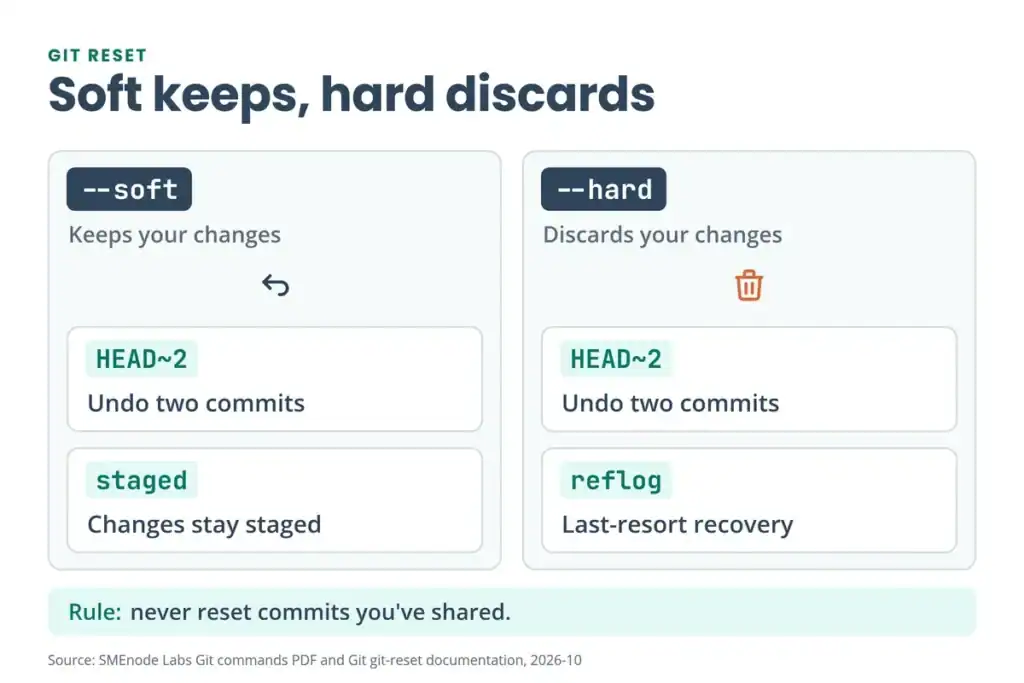
| Drop commits, keep the changes | git reset --soft HEAD~2 | Moves HEAD back two commits, changes stay staged |
| Drop commits, discard the changes | git reset --hard HEAD~2 | Moves HEAD back and overwrites your files |
If you amended a commit you’d already pushed, finish with git push --force-with-lease. According to Git’s git reset documentation, --soft leaves your working tree and index unchanged, the default --mixed updates the index so nothing is staged, and --hard overwrites files so the working tree matches the commit. --hard is destructive: use it only when you’re certain the changes should go. For commits you’ve already shared, git revert adds a new commit that undoes the old one instead of rewriting history.
Git reflog: recover a deleted commit or branch
Reset the wrong way or delete a branch by mistake and the commits usually aren’t gone. git reflog lists where HEAD and your branches pointed, so you can find the lost commit and put a branch on it.
git reflog
git checkout <commit-hash>
git branch recover-branch <commit-hash>
According to Git’s git reflog documentation, reflog entries expire after 90 days for reachable commits and 30 days for unreachable ones, and the reflog is local to your repository. Recover soon, and don’t expect it to rescue work on someone else’s machine.
Git tag command: create, push and delete a release tag
Tag a release so everyone can find it. According to Git’s git tag documentation, annotated tags are meant for releases, while lightweight tags are for private or temporary labels.
git tag -a v1.2.0 -m "Release v1.2.0"
git push origin v1.2.0
git tag --list
git tag v5.1.4-general
git push origin v5.1.4-general
The first three lines create, push and list an annotated release tag. The last two create and push a lightweight tag that points at the current commit. To delete a tag, remove it locally, then on the remote:
git tag -d v1.2.0
git push origin --delete v1.2.0
Git blame, show and diff: find out who changed a line
Three read-only commands answer “who changed this, and what did the change look like?”
git blame <file>
git show <commit-hash>
git diff main..feature/my-branch
git --no-pager log --format="- %s (%an)" -5
git blame shows who last changed each line. git show displays one commit with its metadata and diff. git diff main..feature/my-branch compares the tips of two branches. The last command prints the last five commits as one line each, with the author. Network engineers can put the same idea to work: one of our Python scripts for Cisco devices commits every router’s running-config to Git, so git log and git diff show what changed on which box and when.
Git submodule update: initialise nested repositories
If your project includes other repositories as submodules, one command initialises and updates all of them, including nested ones:
git submodule update --init --recursiveGit commit message and branch naming conventions
Agree on a format and keep to it. A common commit message format is <type>(<optional-scope>): <description>, the pattern behind Conventional Commits:
feat(user): add employee filter
fix(auth): handle expired token
refactor(api): simplify employee query
chore(deps): update packages
Name branches the same way, with a category, a ticket ID and a short description:
feature/FA-123/add-user-filter
bugfix/FA-456/fix-device-sync
hotfix/FA-789/fix-production-login
chore/FA-101/update-dependencies
Those are team conventions, not Git rules, so match what your team already uses. Want to practise branching strategies such as GitFlow and trunk-based development on real tasks? The DevOps Workbook lists them in its Foundations chapter.
Quick Git rules to remember
- Rebase your feature branch, not shared branches such as
main. - Prefer
git push --force-with-leaseovergit push --force. - Stash unrelated local changes before rebasing.
- Squash or clean your commits before merging when your team expects it.
- Be careful with
git reset --hard, because it discards local changes. - If a rebase gets messy,
git rebase --abortis the quick way out.
Where does this free Git PDF stop?
The PDF is a reference. It shows you the commands, but you never get to break a repository and fix it under pressure. The DevOps Certification Workbook opens with a Foundations chapter on Linux, Bash and Git, covering Git fundamentals, branching strategies, pull requests and code review, Git hooks and monorepo versus polyrepo. It pairs the chapters with ready-to-use Git repositories, Docker Compose files and Helm charts, so you can start a first lab in under ten minutes. Preview its sample pages on the workbook page before you decide.
What to read next:
- Playbooks live in Git, so Ansible is the usual next tool. Start with the Ansible commands cheat sheet, then see the 120 Ansible interview questions.
- Provisioning is next after that. Keep the Terraform commands cheat sheet open while you practise.
- Version control is on every automation job list. See network automation engineer skills and pay for what employers ask for.