Most Dockerfile commands cheat sheets stop at FROM, RUN, and CMD, then leave you guessing the moment you need HEALTHCHECK or a multi-stage build. This page covers all 16 Dockerfile instructions you’ll actually use in production, in the order Docker reads them, each with a working example. Copy the free PDF and keep it next to your editor.
This Dockerfile cheat sheet covers all 16 instructions you’ll actually use in production, in the order Docker reads them, each with a working example.
Why This Dockerfile Commands Cheat Sheet Actually Saves You Time
Search “dockerfile commands” and the top results are Docker’s own reference pages: complete, but written like a specification, not something you’d want open while you’re building an image. GeeksforGeeks and a handful of Medium posts cover the syntax but only explain three or four instructions in real depth. None of them explain why COPY package*.json ./ comes before COPY . ., and none combine a scannable table format with a working, copy-pasteable example for every instruction.
That’s the gap this page closes: every Dockerfile instruction, what it does, a real example, and the reasoning behind the parts that trip people up (instruction order, CMD vs ENTRYPOINT, when to reach for a multi-stage build).instruction order, CMD vs ENTRYPOINT, when to reach for a multi-stage build). Looking for the docker run and docker build commands instead? Check the Docker Commands Cheat Sheet.
A Real Dockerfile, Line by Line
Here’s a working Dockerfile for a Node.js app. Every instruction in it is explained in the tables below.
Here’s a working Dockerfile example for a Node.js app, using standard Dockerfile syntax. Every instruction in it is explained in the tables below.
FROM node:20-alpine
WORKDIR /app
COPY package*.json ./
RUN npm install --production
COPY . .
EXPOSE 3000
CMD ["node", "server.js"]
Seven lines, seven instructions, and it builds a working production image. The order isn’t arbitrary. Read on for why.
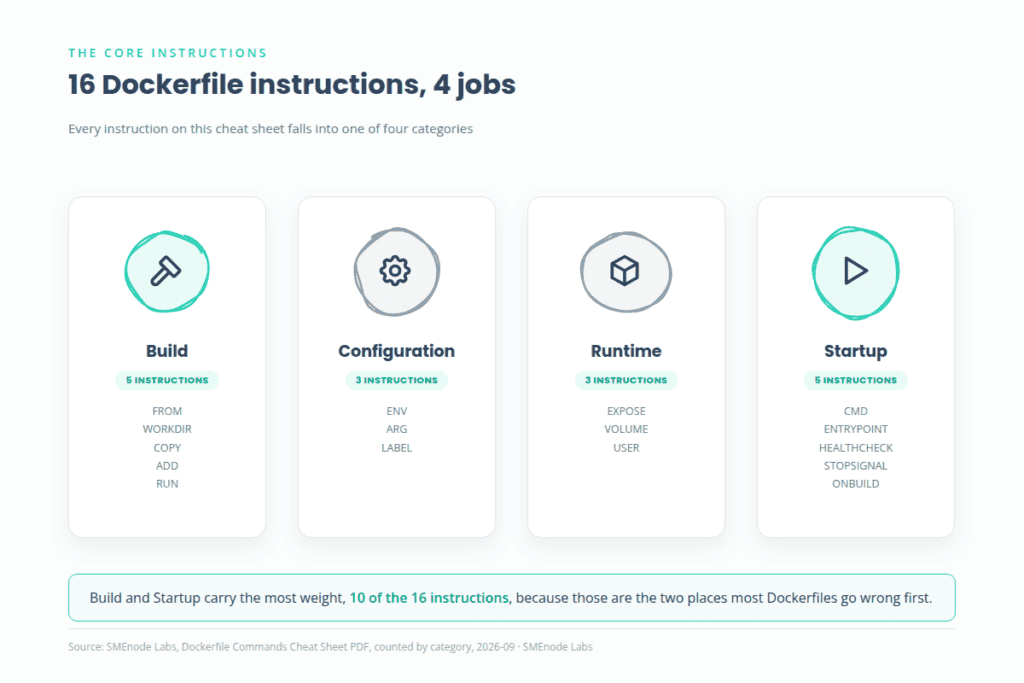
Build Instructions: FROM, WORKDIR, COPY, ADD, RUN
These five instructions set up the image’s filesystem before anything runs.
| Instruction | What it does | Example |
|---|---|---|
FROM | Sets the base image everything else builds on top of. Always the first instruction. | FROM node:20-alpine |
WORKDIR | Sets the working directory for every instruction that follows, and creates it if it doesn’t exist. | WORKDIR /app |
COPY | Copies files from your build context (your project folder) into the image. | COPY package*.json ./ |
ADD | Does what COPY does, plus it can pull from a remote URL and auto-extracts local .tar archives. Use COPY unless you specifically need one of those two behaviors. | ADD app.tar.gz /app/ |
RUN | Executes a command during the build and commits the result as a new image layer. | RUN npm install --production |
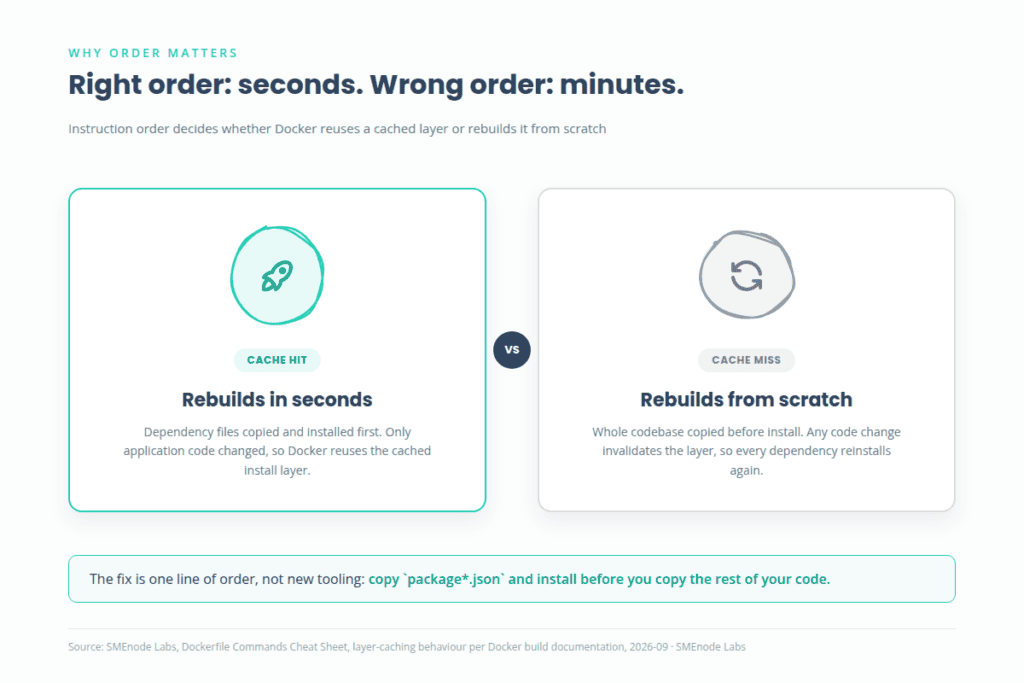
Why COPY package*.json ./ happens before COPY . .: Docker caches each layer. If the layer that installs dependencies comes after the layer that copies your entire codebase, changing a single line of application code invalidates the cache and forces a full npm install on every build. Copy just the dependency manifest first, install, then copy the rest. Now editing your code only re-runs the fast COPY . . step, not the slow install. This one reordering turns a multi-minute rebuild into a few seconds.
Configuration Instructions: ENV, ARG, LABEL
These three attach settings and metadata to the image rather than files.
| Instruction | What it does | Example |
|---|---|---|
ENV | Sets an environment variable that persists into the running container. | ENV NODE_ENV=production |
ARG | Defines a build-time-only variable, passed with --build-arg. Not available in the running container unless you also assign it to an ENV. | ARG NODE_VERSION=20 |
LABEL | Attaches key-value metadata to the image (maintainer, version, description). Doesn’t affect how the image runs. | LABEL maintainer="de****@*****le.com" version="1.0" |
The most common mix-up: ARG values disappear once the build finishes. If a script inside your running container needs a value, assign the ARG to an ENV in the same Dockerfile.
Runtime Declarations: EXPOSE, VOLUME, USER
These three describe how the container behaves once it’s running, not how the image is built.
| Instruction | What it does | Example |
|---|---|---|
EXPOSE | Documents which port the container listens on. This is documentation only, it doesn’t publish the port. You still need -p on docker run. | EXPOSE 3000 |
VOLUME | Declares a mount point for data that should persist outside the container’s writable layer (databases, uploads). | VOLUME /app/data |
USER | Sets which user runs the container and every instruction after it. Skip this and your container runs as root by default, which is a real security risk in production. | USER node |
USER is the instruction most beginner Dockerfiles are missing, and it’s the first thing a security review usually flags.
Startup Instructions: CMD, ENTRYPOINT, HEALTHCHECK, STOPSIGNAL
These four control what happens the moment docker run starts the container.
| Instruction | What it does | Example |
|---|---|---|
CMD | Sets the default command the container runs, and it can be overridden at docker run. | CMD ["node", "server.js"] |
ENTRYPOINT | Sets a fixed executable that always runs. Combine it with CMD to supply default arguments that can still be overridden. | ENTRYPOINT ["node"] with CMD ["server.js"] |
HEALTHCHECK | Tells Docker how to test whether the container is actually working, not just running. | HEALTHCHECK --interval=30s CMD curl -f http://localhost:3000/health || exit 1 |
STOPSIGNAL | Sets which system signal Docker sends to stop the container gracefully (default is SIGTERM). | STOPSIGNAL SIGTERM |
CMD vs ENTRYPOINT, the short version: use CMD alone when you want a default that’s easy to override (docker run myimage node debug.js). Use ENTRYPOINT plus CMD when the executable should never change but the arguments should (docker run myimage --port=4000). Most application images only need CMD. Reach for ENTRYPOINT when you’re building a CLI tool as a container.
Less Common But Useful: SHELL and ONBUILD
Two instructions you won’t need often, but which matter when you do.
| Instruction | What it does | Example |
|---|---|---|
SHELL | Overrides the default shell used for shell-form instructions (/bin/sh -c on Linux by default). Useful on Windows images or when you need bash-specific syntax. | SHELL ["/bin/bash", "-c"] |
ONBUILD | Registers a trigger that runs later, when this image is used as the base for a different build. Mostly seen in base images meant for other teams to build on top of. | ONBUILD COPY . /app/src |
Dockerfile Multi-Stage Build: One Dockerfile, Two Images
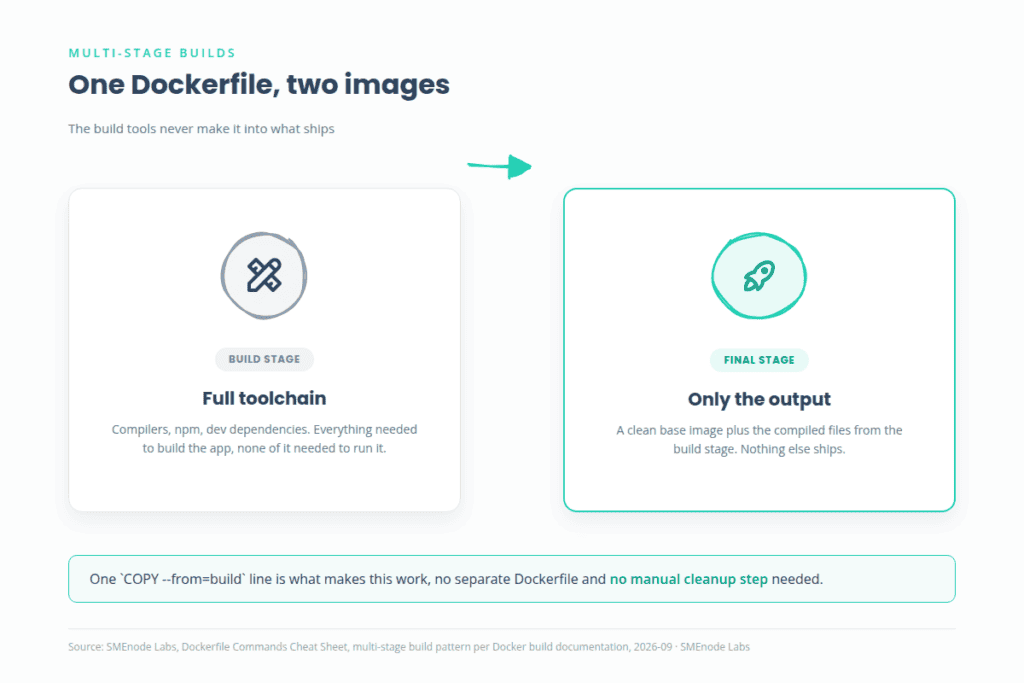
A single-stage Dockerfile bakes your build tools (compilers, npm, dev dependencies) into the final image, which makes it bigger and gives attackers a larger surface. A Dockerfile multi-stage build fixes that: one stage builds the app, a second stage copies only the finished output into a clean, minimal image.
FROM node:20 AS build
WORKDIR /app
COPY . .
RUN npm install && npm run build

FROM nginx:alpine
COPY --from=build /app/dist /usr/share/nginx/html
The build stage has the full Node.js toolchain and every dependency. The final image is plain nginx:alpine plus your compiled files, nothing else. No Node.js runtime, no node_modules, no leftover build tools shipping to production. This is the single biggest lever for cutting image size, and it’s also the instruction set that trips people up most when they’re new to Dockerfiles, which is exactly why our DevOps Certification Workbook walks through building and testing a multi-stage Dockerfile step by step instead of just showing you the final syntax.
Dockerfile Best Practices
| Practice | Why it matters |
|---|---|
Start from a small base image (node:20-alpine, not node:20) | Smaller images pull faster and carry less attack surface |
Pin explicit version tags (node:20.11-alpine, not node:latest) | :latest can change under you and silently break a build months later |
Add a USER instruction instead of running as root | Limits the damage if the container is ever compromised |
Use a .dockerignore file | Keeps node_modules, .git, and local secrets out of your build context |
| Order instructions from least to most frequently changed | Maximizes cache reuse and keeps rebuilds fast |
What’s Inside the Free Dockerfile Commands PDF
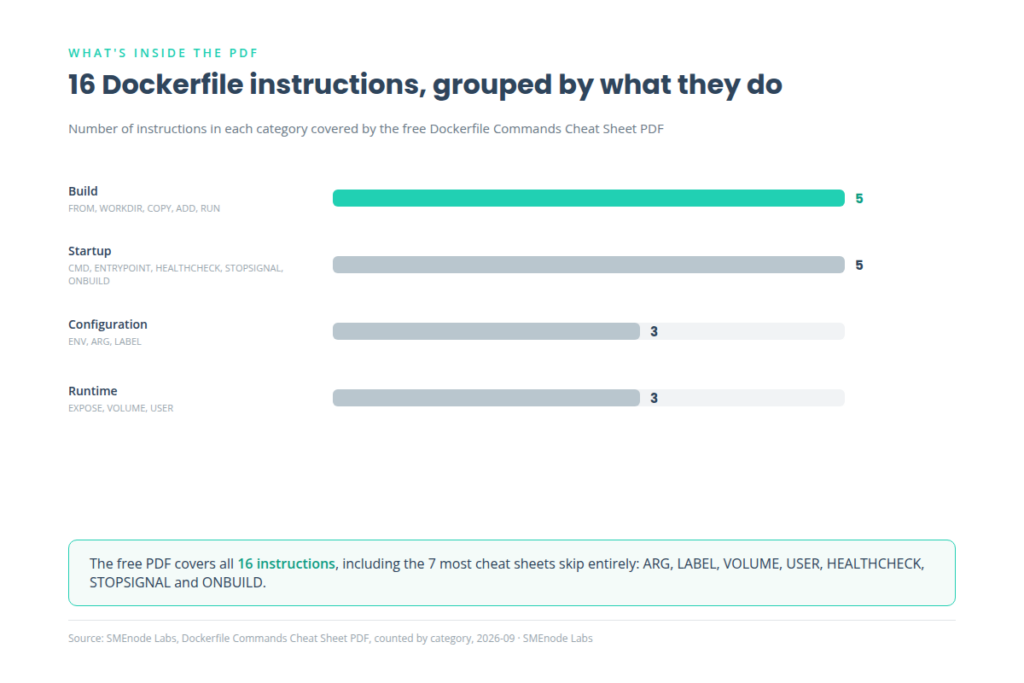
The PDF condenses everything on this page into a single Dockerfile reference sheet:
- A complete Dockerfile commands list, all 16 instructions in one table, grouped the same way as above: build, configuration, runtime, startup
- The full working Node.js Dockerfile and the multi-stage build example, ready to copy
- The layer-caching order explanation, so your rebuilds stay fast
- The Dockerfile best-practices checklist
- A quick-reference card for
CMDvsENTRYPOINT, the instruction people mix up most
It’s built to sit open next to your editor while you write, not to be read once and archived.
Who This Dockerfile Commands Cheat Sheet Is For
If you’re still figuring out how to write a Dockerfile from scratch, this covers every instruction from zero with no assumed prior exposure. If you already ship containers but keep forgetting the exact HEALTHCHECK syntax or when ARG beats ENV, this is the fast lookup. And if you’re preparing for a DevOps or Docker certification, this cheat sheet is a companion to a much deeper resource: the DevOps Certification Workbook covers Dockerfile authoring, multi-stage builds, and image security hardening as full hands-on labs, not just a syntax reference. Grab the free PDF here, and when you’re ready to actually build and break things in a real lab environment, the workbook is the next step.
This cheat sheet gives you the syntax. The DevOps Certification Workbook gives you the practice: hands-on labs for writing production Dockerfiles, building multi-stage images, hardening them for security, and the rest of the DevOps toolchain (Docker Compose, CI/CD pipelines, Kubernetes basics). If you’re studying for a certification or building real container skills for a job, this is the resource this cheat sheet points to.