Terraform has 18 commands you’ll actually use, and terraform import is the one people search for most. This terraform commands cheat sheet covers every one of them: what each does, the exact syntax, and the flags that matter, from terraform init on day one to terraform state mv when you refactor a module six months later. Grab the free PDF and keep it open next to your terminal.
Installing Terraform: curl vs tfenv
You can install Terraform two ways, both straight from HashiCorp’s official CLI documentation. The first is a direct binary download with curl, then unzip it into your PATH:
curl -O https://releases.hashicorp.com/terraform/1.4.6/terraform_1.4.6_linux_amd64.zip
sudo unzip terraform_1.4.6_linux_amd64.zip -d /usr/local/bin/
The second is tfenv, a Terraform version manager. It’s the better choice the moment you work across more than one project, because different projects pin different Terraform versions and tfenv switches between them without a reinstall:
git clone --depth=1 https://github.com/tfutils/tfenv.git ~/.tfenv
echo 'export PATH="$HOME/.tfenv/bin:$PATH"' >> ~/.bash_profile
tfenv install 1.4.6
tfenv use 1.4.6
Check what you’ve got with terraform -v. Once it’s installed, the terraform commands below are the ones you’ll actually run day to day.
Terraform Init and Terraform Get: Setting Up a Working Directory
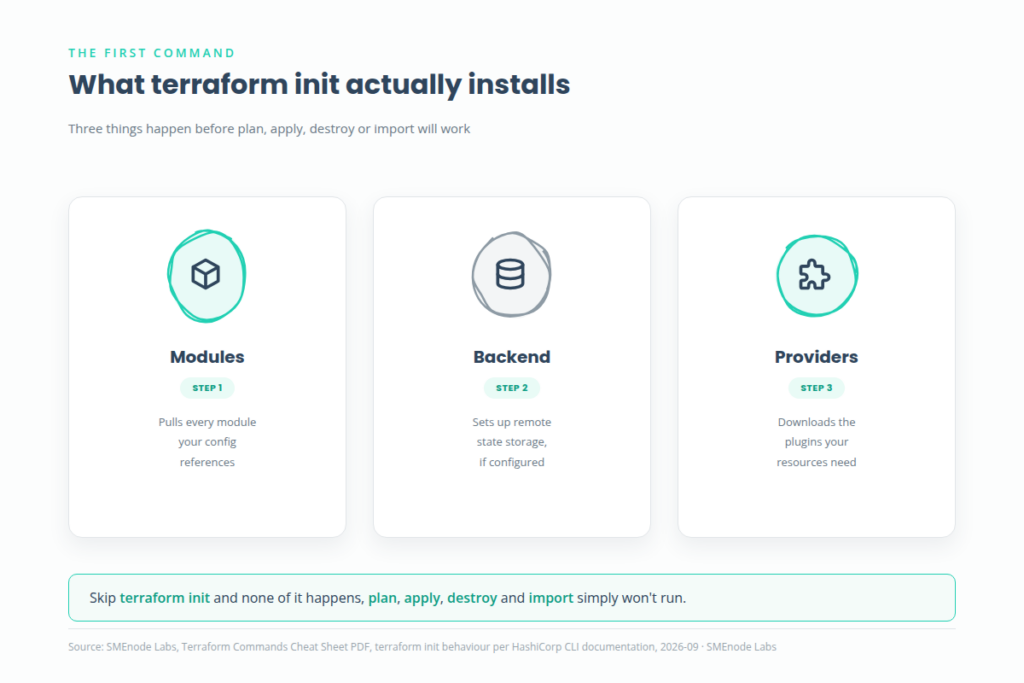
terraform init is the first command in every Terraform workflow. Skip it and plan, apply, destroy and import simply won’t run. It installs three things: terraform modules, the backend (if you’ve configured one), and provider plugins.
terraform init
terraform init -input=false
terraform init -backend-config=cfg/s3.dev.tf -reconfigure
-input=false stops Terraform from prompting you, useful in CI. -reconfigure tells Terraform not to copy the existing state to a new remote backend location when you change backend config mid-project.
terraform get -update=true is the quieter sibling command. If your project uses modules, editing a module means you need to re-pull its content into the .terraform directory. Run terraform get once after adding a module, and again with -update=true any time you change what a module points to.
Terraform Plan and Terraform Apply: Dry Run, Then Real Change
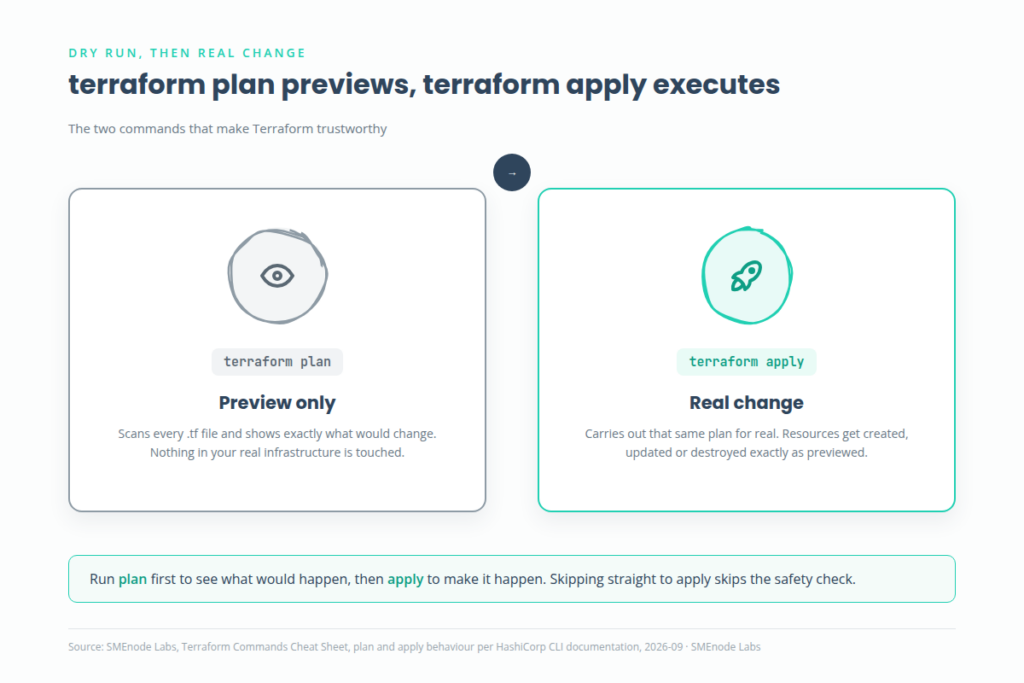
terraform plan is the command that makes Terraform trustworthy. It scans every .tf file in your directory and shows exactly what will change before anything actually changes.
terraform plan -out plan.outterraform apply executes that plan. Since Terraform v0.11, running terraform apply alone in an interactive session prints the plan and asks for confirmation, no separate plan step required. Generating the plan and applying it in one command also means Terraform never writes the plan to disk, which keeps potentially sensitive data out of version control by default.
| Command | What it does |
|---|---|
terraform apply plan.out | Applies a plan file you generated earlier |
terraform apply | Plans and applies in one step, interactive mode only |
terraform apply -auto-approve | Same thing, skips the confirmation prompt |
terraform apply -auto-approve -var tags-repository_url=${GIT_URL} | Applies with a variable set from the command line |
terraform apply -target=module.s3 | Applies changes to one module only |
-target works with terraform plan too, so you can preview a single module’s changes before touching the rest.
Terraform Destroy: Tearing Down Safely
terraform destroy deletes every resource Terraform manages in the current state. That’s the whole command, no flags needed for the blunt version. For anything less than “delete everything,” two options matter:
terraform plan -destroy
terraform destroy -target aws_s3_bucket.my_bucket
terraform plan -destroy previews the deletion before you commit to it, the same safety net plan gives you on the way up. -target narrows destroy to one resource, useful when you need to remove a single S3 bucket without touching the rest of the stack.
Terraform Import: The Command Most People Search For
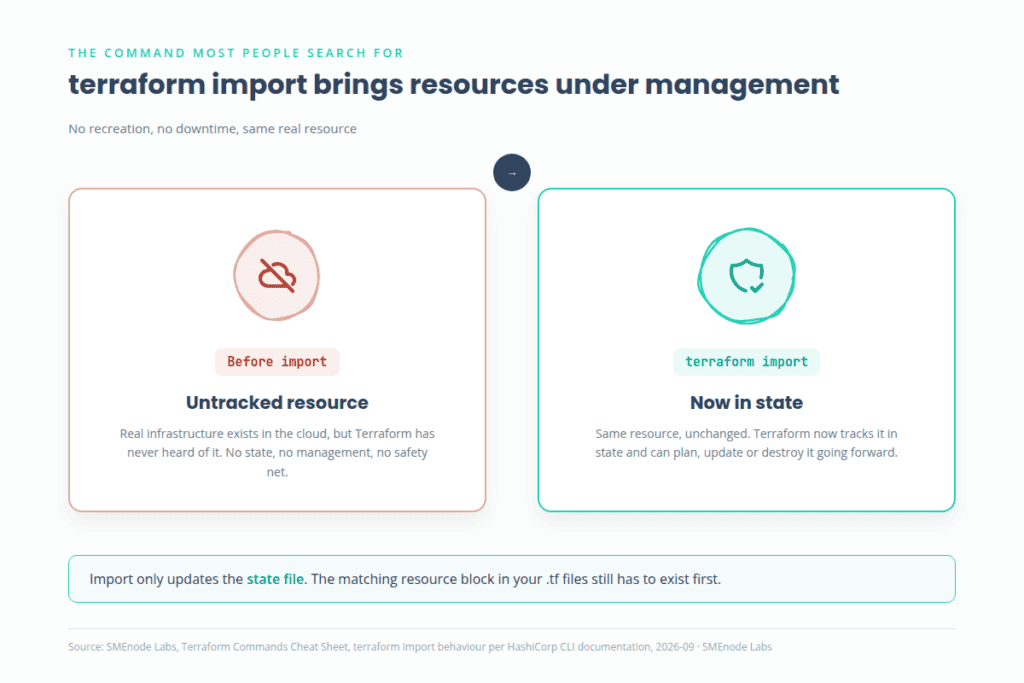
terraform import gets more monthly searches than any other single Terraform command, and the reason is practical: teams inherit infrastructure that was never written as code. Import brings an existing cloud resource under Terraform’s management without recreating it.
terraform import aws_iam_policy.elastic_post arn:aws:iam::123456789:policy/elastic_postYou still need a matching resource block in your .tf files before you import. Import only updates the state file, it doesn’t generate configuration for you. The DevOps Certification Workbook walks through a full import scenario as a hands-on lab, start to finish, not just the command syntax.
Terraform State Commands: Show, Pull, Push and Move
State is the file Terraform uses to track what it manages, and four terraform commands cover almost everything you’ll need to do with it.
| Command | What it does |
|---|---|
terraform show | Prints the current state in human-readable form |
terraform state pull > terraform.tfstate | Downloads remote state to a local copy |
terraform state push | Uploads local state to remote backend storage |
terraform state mv aws_iam_role.role1 module.mymodule | Updates state after you move a resource into a module |
state push matters most during migrations, moving from a local .tfstate file to a remote backend like S3 or Consul without losing history. state mv is the one people forget: if you refactor a resource into a module in your .tf files without telling Terraform, it’ll try to destroy the old resource and create a new one. Running state mv first avoids that.
Terraform Workspace Commands: Managing Multiple Environments
Terraform workspaces let you manage separate environments, dev, staging, prod, without a separate directory for each one.
terraform workspace new dev
terraform workspace select dev
terraform workspace list
terraform workspace show
workspace new creates a workspace and switches to it in one step. workspace list shows every workspace you’ve got, with an asterisk marking the active one. Keep in mind workspaces share the same backend configuration, they’re not a substitute for genuinely separate AWS accounts on high-stakes production environments. If you’re also managing multi-container environments day to day, the Docker Compose Commands Cheat Sheet covers the same dev/staging split from the container side.
Terraform Output, Validate, Refresh, Graph and Console
Five more terraform commands round out the day-to-day toolkit.
| Command | What it does |
|---|---|
terraform validate | Checks .tf file syntax across the whole directory |
terraform refresh | Compares real remote state against your local state file |
terraform graph | dot -Tpng > graph.png | Renders a visual dependency graph of your resources |
terraform console | Opens an interactive shell for testing interpolations against real state |
terraform output -json | Prints module outputs as JSON |
terraform validate catches syntax errors, but it won’t catch every logical problem, it checks that the files parse, not that the plan will succeed. terraform console is worth knowing for quick checks: pipe a string into it to test an expression against live state, for example echo "aws_iam_user.notif.arn" | terraform console returns the real ARN.
Terraform Providers: Seeing What’s Installed
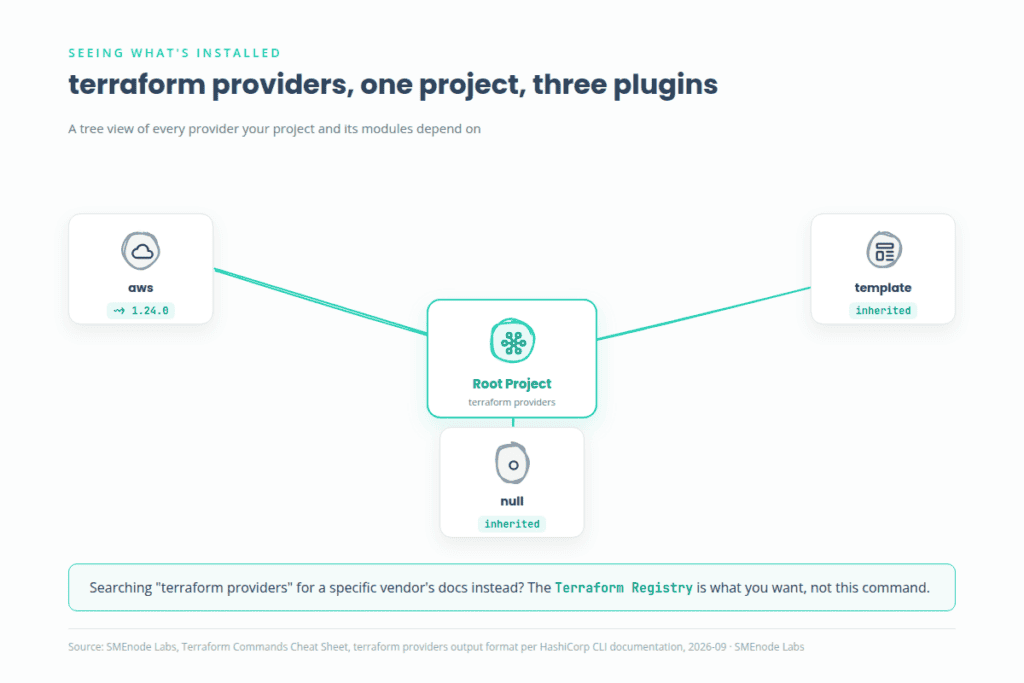
terraform providers prints a tree of every provider plugin your project and its modules depend on, useful when a project has grown past one or two modules and you’ve lost track of what’s pulling in what.
.
├── provider.aws ~> 1.24.0
├── module.my_module
│   ├── provider.aws (inherited)
│   ├── provider.null
│   └── provider.template
└── module.elastic
    └── provider.aws (inherited)
Most people searching “terraform providers” are actually looking for a specific provider’s documentation, like the AWS or Azure provider. If that’s you, this command isn’t what you need, the Terraform Registry is. If you’re trying to audit what your own project depends on, this is the command.
Debugging with TF_LOG and Two Tools Worth Pairing with Terraform
When something breaks and you need to know why, set the log level and point it at a file:
TF_LOG_PATH=mylogfile.txt TF_LOG=debug terraform applyTwo external tools extend what the CLI does on its own. jq, a lightweight JSON processor, turns terraform output -json into something scriptable:
terraform output -json | jq '.elastic_endpoint.value'That pulls one specific output value out of a module, handy when a CI pipeline needs a single endpoint URL rather than the full JSON blob. gcloud beta resource-config bulk-export does the reverse job for Google Cloud: it exports existing GCP resources straight into Terraform format, so migrating infrastructure that was built by hand into code doesn’t mean writing every resource block from scratch.
gcloud beta resource-config bulk-export --resource-format=terraformDebugging Terraform, Docker and CI/CD failures under pressure comes up constantly in DevOps interviews. The Free DevOps Interview Questions PDF has 180 Q&As covering exactly that, across the whole toolchain, not just Terraform.
Why Some Teams Are Testing OpenTofu Instead of Terraform
If you’ve seen this question online, here’s the short version. HashiCorp changed Terraform’s license from the open MPL to the more restrictive BSL in August 2023, and IBM completed its $6.4B acquisition of HashiCorp in December 2024. OpenTofu, a Linux Foundation fork that kept the MPL license, has reached roughly 12% adoption as of April 2026, with another 27% of teams evaluating or planning to expand their use of it. The commands in this cheat sheet work identically in both tools, OpenTofu is a fork, not a rewrite, so nothing here goes stale if your team ends up switching.
What’s Inside the Free PDF
The PDF puts every one of these terraform commands into one reference sheet:
- All 18 commands with real syntax and flags, formatted for quick scanning
- Both install methods, curl and tfenv, side by side
- The jq and gcloud bulk-export tips most cheat sheets skip
- A one-page state and workspace command summary
It’s built to stay open in a second monitor while you work, not to be read once and forgotten.
Who This Cheat Sheet Is For
If you’re new to Terraform, this covers the full set of terraform commands and the reasoning behind each one, not just a syntax dump. If you already run Terraform daily but keep forgetting the exact state mv syntax or whether -target works with plan, this is the fast lookup. If you’re building real infrastructure-as-code skills for a DevOps role, this is the free preview of a deeper resource: the DevOps Certification Workbook walks through Terraform, Docker, Kubernetes and Jenkins CI/CD as full hands-on labs. Already comfortable with containers and want the Docker side of this toolchain? Check the Docker Commands Cheat Sheet, the Dockerfile Commands Cheat Sheet or the Docker Compose Commands Cheat Sheet. Prepping for interviews across the whole toolchain? The Free DevOps Interview Questions PDF covers Terraform alongside Linux, Git, Jenkins, Docker and Kubernetes.
Related Workbook
DevOps Certification Workbook ($99)
This cheat sheet gives you the commands. The workbook gives you the practice: hands-on labs for Terraform, Docker, Kubernetes and Jenkins CI/CD pipelines, the same toolchain covered across this entire free PDF series. If you’re building real DevOps skills for a certification or a job, start with the DevOps Certification Workbook.